Program Setup & Actions
In Dynasend, a "program" equates to a cohesive collection of email signature templates. These templates include, at a minimum, a default HTML template and a TXT template, and optionally, reply and internal templates as well.
Program Setup Process
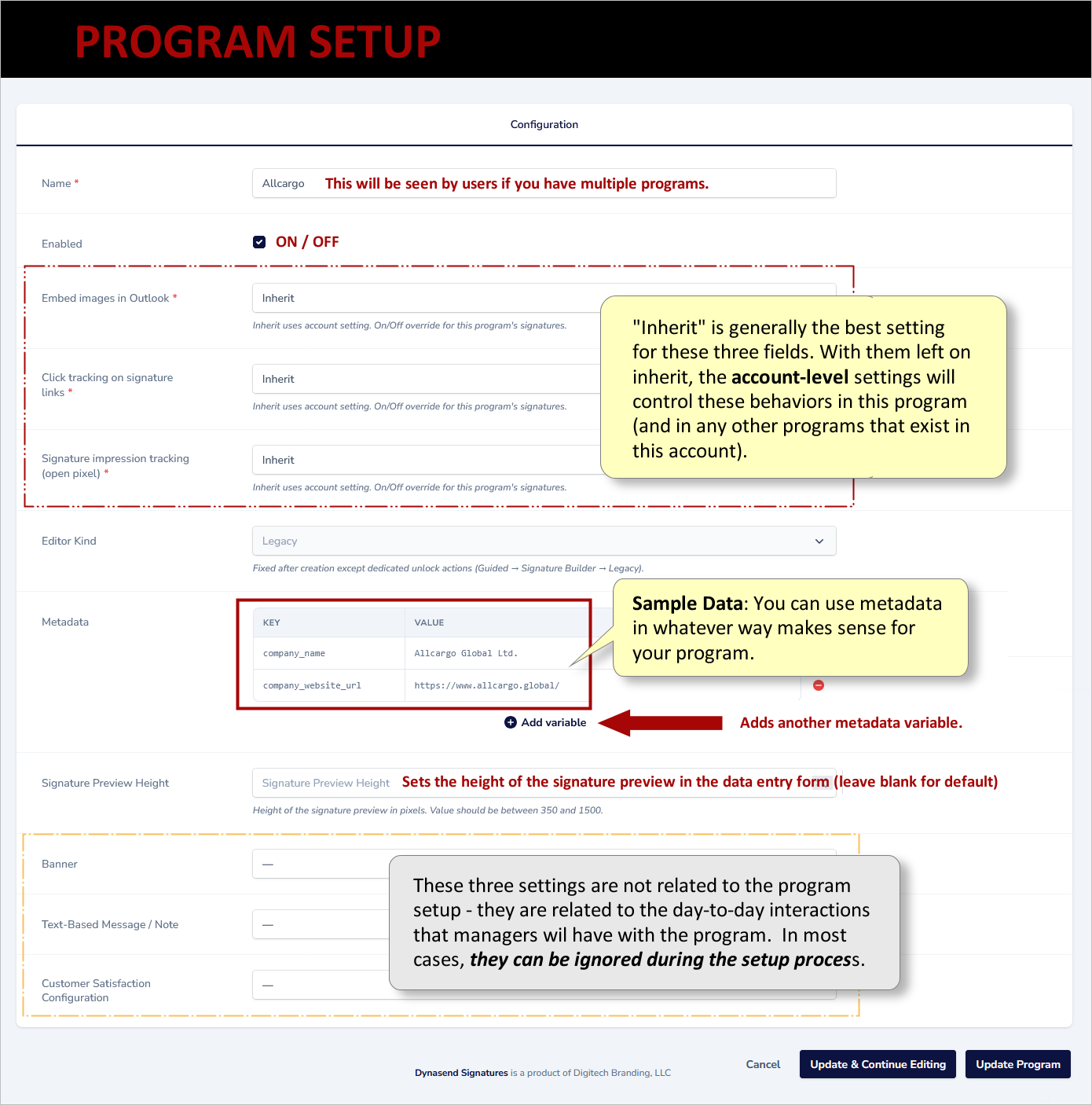
The program setup process is relatively straight-forward and infinitely flexible. When setting up a program this is the screen you will see:
Program Actions
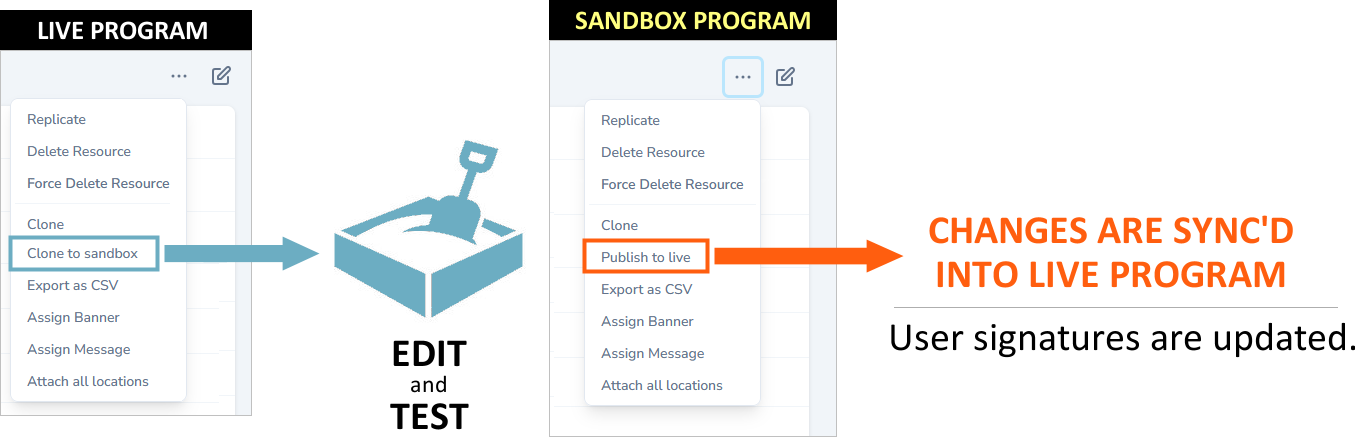
Dynasend offers a number of program actions, the key ones being illustrated here:

Of these three actions, the "Clone to sandbox" is the most important. Cloning to the sandbox is designed to enable you to modify and test an existing, live, program, without the risk of adversely affecting the signatures that are in use. Once a program has been cloned to the sandbox, you can work on it as-needed in the sandbox environment (add new data fields, modify signature HTML, etc.) with no impact on your live program. When you're satisfied with the changes, you can "Publish to live" to apply the changes to your live program / existing signatures.
Sandbox
Testing Email Performance Before Publishing
Depending upon the extent of the changes you've made, you may wish to test your changes in actual email prior to publishing them to your full user base. You can do this by following the five steps shown in the following graphic:
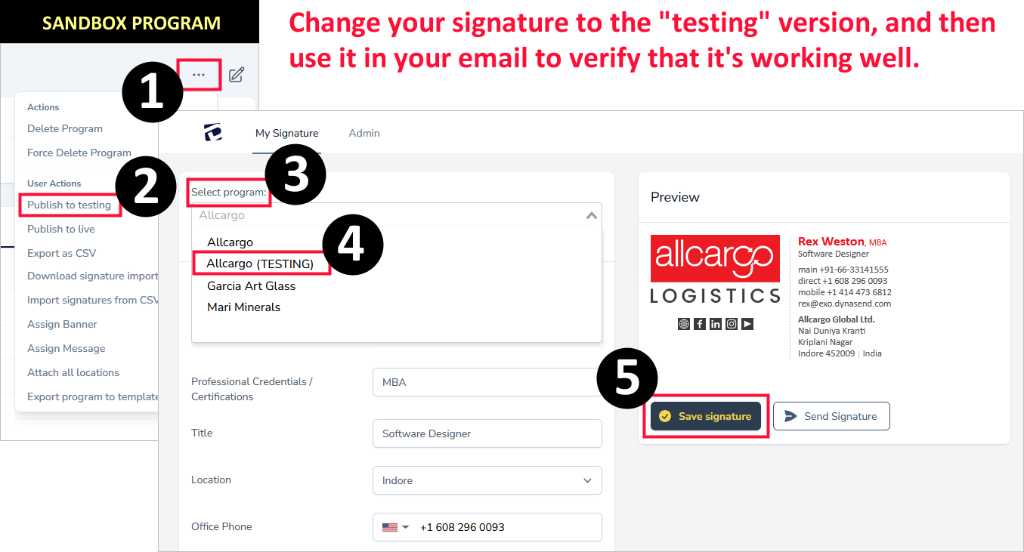
The "test" program you have created will only be made available to people with Manager credentials or higher. It will not appear as an option to general users.
Data Related Program Actions
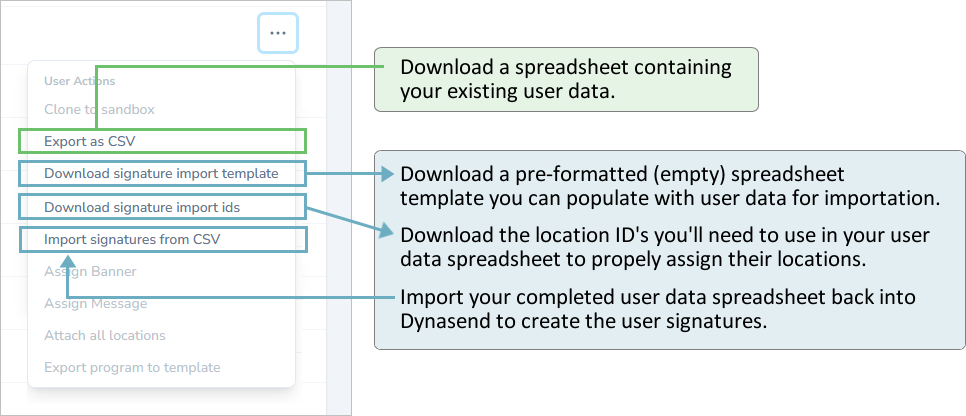
Program actions include export and bulk signature import:
Export as CSV
Exports signature data for the selected program. Use this when you need a snapshot of current users; column layout follows that program’s form.
Download signature import template
Downloads an empty CSV whose headers match the program’s importable form models, plus email. Relation columns appear when the form includes them:
locationfor a location fieldbannerfor a banner selectsignature_messagefor a signature message selectcsat_configwhen the account has at least one CSAT config
The download filename uses the program’s pretty ULID (for example program_01h…-signature-import-template.csv).
Download signature import ids
Downloads a lookup CSV with kind, name, and pretty_ulid for the relations included in that program’s template. Use it to fill location, banner, signature message, and CSAT cells without guessing ids.
Import signatures from CSV
Uploads a CSV against a single program. Available on the Programs index (one program selected, or the row actions menu) and on the program detail page. Requires Manager credentials or higher, with permission to create and update signatures on that account.
Behavior:
- Creates a signature when the email is new to Dynasend for this account and program.
- Updates an existing signature in the same program when the email matches.
- Leaves fields unchanged when a cell is empty.
- Stores form text and select values in signature metadata; stores location, banner, signature message, and CSAT as foreign keys from pretty ULIDs.
- Rejects numeric ids for relation columns, inactive banners or messages, and locations that are not attached to the program.
- Reports per-row failures in a dashboard notification (and an optional failures CSV).
Manager-facing steps: bulk import of user data.
Related docs: