Google Workspace Deployment
This page covers deploying signatures into Gmail (injection, Marketplace app, and related tools). Dedicated Google Directory import docs are Coming Soon. For the full chooser across directories and CSV, see Importing people.
To use Dynasend on Google Workspace domains, you need to integrate your Google domain. The integration process enables you to import your employee data and deploy the signature generated for them by Dynasend. This article reviews the Google Workspace integration process for Dynasend for Team users. Even though you can use Dynasend with Google Workspace without integrating between the two systems, it is the most recommended way to manage your users on Dynasend and optimize your use of the Dynasend solution.
If you are looking to deploy your signature on a single-user Gmail account, follow the instructions in our Gmail Signature Deployment article.
Why integrate your Google Workspace?
Google domains are automatically identified by Dynasend and offered the option to integrate as part of the onboarding process and afterward through the integration screens. Once integrated, you can import your employees to Dynasend, synchronize between the Dynasend employee information and your employee information in the Directory, automatically add new employees or delete employees who are no longer part of your organization, and eventually deploy your employee signatures into their emails.
The integration process can only be done by the Google Workspace super administrator for your domain.
How to integrate Google Workspace
The integration process can only be done by the Google Workspace super administrator for your domain.
During the integration procedure, you will be asked to send an email with integration instructions to the Google Workspace super administrator. The super admin needs to be connected to their Google Account on a separate tab before integrating and needs to be signed out from any other Google Account they may have on the same browser. For further detailed instructions to the super admin, see steps 5-12 in the procedure below.
- Sign in to your Dynasend account.
- On the main navigation panel, click Connectors.
- In the Google Workspace section, click Connect.
- In the popup, enter the Google Workspace super administrator’s email address and click Send invitation.
The following steps need to be performed by the Google Workspace super administrator:
- The super admin needs to open the email sent in the previous step, follow the instructions in the email, and the following steps described in this procedure.
- In the email, click Open Google Workspace in step 1 and the corresponding Google Workspace Marketplace page opens.
- Click Admin install and then click CONTINUE on the popup.
- On the Installation consent screen, verify that Everyone at your organization is selected.
- Then select I agree … and click FINISH.
- A message appears that Dynasend Email Signature Management G Suite has been installed. Click NEXT and then click Done on the next popup.
- Go back to the email and click Sync employees in the second step.
- If you get an integration failed message, the integration is in process. Wait a short time and click Sync employees again.
- When your integration is successful, a confirmation that your domain is now integrated with Dynasend appears. Select import all users and click Import.
For the Dynasend administrator:
- If you have the Sync specific feature enabled, a confirmation that your domain is now integrated appears on the Dynasend Employees page. Click Sync all employees to sync all employees, or select specific employees by category, as follows: a. Click Sync specific and the list of your departments is displayed. During this process, a notification appears at the bottom-left of your page, indicating the progress of the process. b. Select the category for syncing your employees. Only one category is supported. c. Select the items in the category and click Save & sync. During the sync process, a notification appears at the bottom-left of your page, indicating the progress of the process.
- You should now see the Employees page with all your selected employees synchronized.
The Integration link sent in the Super Admin email is valid for 24 hours only.
Manage Google Workspace connector
After creating the Google Workspace connector, you can manage this connector from the Management page. From this page you can perform management tasks, such as view the connector status, set new features and remove the connector. To access the Management page, go to the Connectors page and click Manage for the Google Workspace connector.
Following are the management tasks available to you:
Automatic injection
When this feature is enabled, newly activated employees will have their signatures automatically injected into their outgoing Gmail emails.
Status
Displays the current status of the connector. In this section the following information is displayed:
- Tenant - Displays the primary domain
- Traffic - Indicates whether the traffic is act
- Live or pending.
- Last used - Displays the date and time that a signature was injected. If no signature was injected within the last seven days, an error message appears.
- Error - If there is an error a message appears in this section describing the error and information on how to resolve the problem.
Disconnect
Click Disconnect to remove this connector.
Domain integration troubleshooting
If you signed up for a Dynasend account but have not been able to successfully integrate it with your Google domain, verify that the following settings are applied. If you still cannot integrate, check the troubleshooting section below to fix the issue:
- The user who is attempting to integrate must be the Google Workspace super administrator.
- API Data Access in Google Workspace must be set to Granted.
- Dynasend must be enabled for all organizational units.
Uninstall or disable Dynasend from Google Workspace
If you need to uninstall and reinstall Dynasend to refresh the connection, follow the steps below. When you delete the app, signatures created through that integration are discarded, and employee signatures are removed from Gmail.
- As the Google Super Admin, make sure you are logged into Google Workspace.
- Go to Google Admin (admin.google.com).
- From the navigation panel, select Apps > Google Workspace Marketplace apps > Apps list.
- On the page that opens, select the Dynasend app.
- On the left side of the page that opens, click Delete App. Then, in the confirmation popup, click Delete App.
Google Apps Deployment Overview
Configuring Google Apps signature deployment requires:
- Enabling API access from within the Google Apps Admin console
- Running the Google Apps Signature Deployment Assistant to set the API keys
- Deploying the generated configuration settings to users of the Signature Deployment tool
Before starting, ensure you have administrator credentials for Google Apps and have successfully installed the Signature Deployment Tool in Admin mode. The Google Apps Deployment Assistant is only available in the Admin mode (not User mode) installer. The download link to the Signature Deployment Tool (Admin Version) is available from your Dynasend administrator or contact support.
The Google Apps Signature Deployment Assistant generates an encrypted configuration file that must be deployed to all users who require Google Apps signature deployment. In smaller environments this can be done manually; in larger environments we recommend using a logon script or third-party software deployment tool.
Part 1: Google Apps preparation
-
Go to https://console.developers.google.com/apis/credentials and log in with your Google Apps administrator credentials.
-
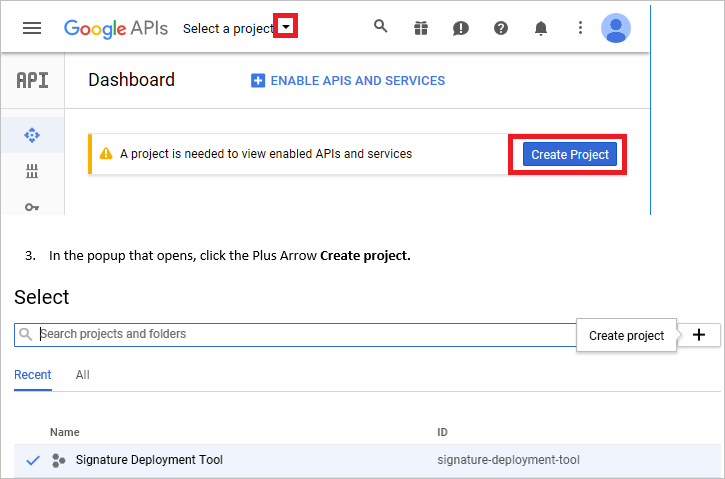
Next to the Google APIs logo, click the drop-down arrow next to Select a project, or if the dashboard appears, use the Create project button. (If you already have at least one project, one of your project names will be displayed instead of "Select a project.")
-
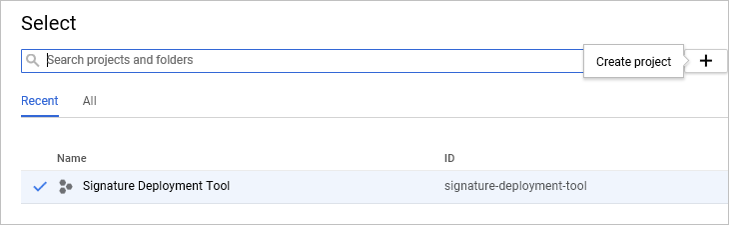
In the popup, click the plus arrow Create project.
-
Name the project Signature Deployment Tool and click Create.

-
Open the Credentials tab (key icon on the left if not already selected).

-
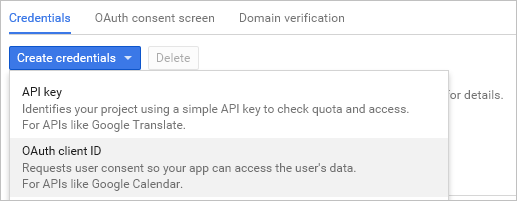
Click Create Credentials and select OAuth client ID.
-
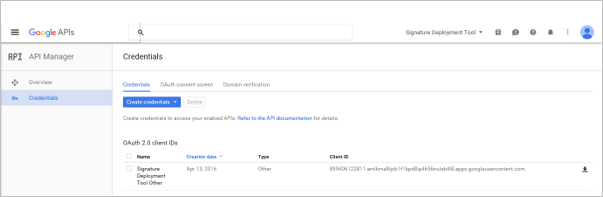
Select Other as the application type and enter a name for the key (for example, Signature Deployment Tool Other). In the list of OAuth 2.0 client IDs, click the name of the client ID you created.
-
The Client ID and Client Secret required for Part 2 are displayed on this page.
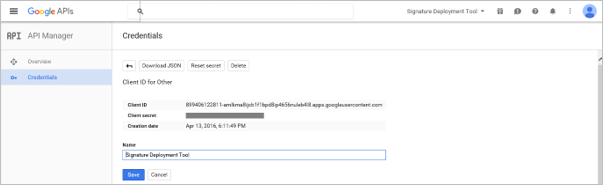
Part 2: Running the Google Apps Signature Deployment Assistant
-
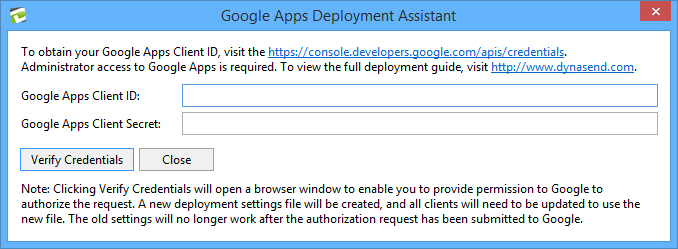
Launch the Google Apps Signature Deployment Assistant from the Start menu and enter the Client ID and Client Secret from step 8 above.
-
Click OK to continue. If you re-run the process, existing clients with old configuration files may no longer be able to deploy to Google Apps until they receive an updated configuration file.

-
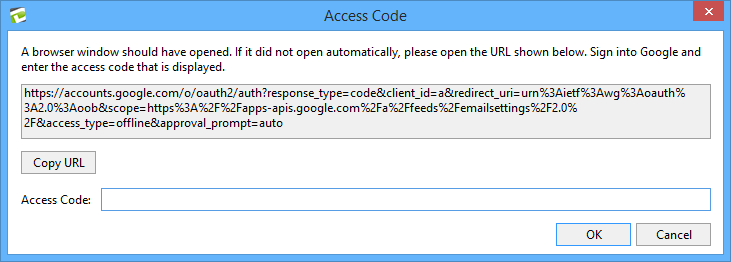
In the browser window that opens, sign in to Google Apps and agree to the authorization request.
-
Copy the Access code from the browser window and paste it into the Access Code dialog box. Click OK.
-
After successful verification with Google, the configuration file is generated and the folder containing it opens. Deploy the GoogleAppsConfiguration.xml file to all clients who need Google Apps signature deployment:
- User mode: Copy GoogleAppsConfiguration.xml to %ProgramData%\DynaSend\Signature Deployment Tool.
- Admin mode: Copy GoogleAppsConfiguration.xml to the user's %APPDATA%\DynaSend\Signature Deployment Tool folder.
Troubleshooting
The following are some of the issues that may occur:
Dynasend does not have the correct super admin listed in the back-end
In the Google Admin settings check the email address listed as the super admin of the domain. If the email is different from the one registered on Dynasend, send the updated address to Dynasend support team.
**Dynasend App is not installed **
The Integration Failed popup appears when there are issues involving app installation.
If the Dynasend App is not installed, a message appears that “The Dynasend app is not installed on Google Workspace”, and will include installation instructions.
App installation can occasionally take several minutes. If you click Sync employees too quickly after installing the app, you may see an error message popup. In this case, wait a minute or two and then click Sync employees again.
If you continue to get this Integration Failed error, open the Google Admin Console (Apps > Google Workspace Marketplace apps > Apps list), select Dynasend - Email Signature Management for G Suite, and verify the app is installed. If the app is not installed, install it again from the Google Workspace Marketplace.
API data access in Google Workspace is not set to Granted
From your Google Admin Console, go to Apps > Google Workspace Marketplace Apps > Apps list and select Dynasend - Email Signature Management for G Suite.
On the page that opens, go to the Data Access section and verify that the status is Granted.
Dynasend is not enabled for all organizational units From your Google Admin console, go to Apps > Google Workspace Marketplace Apps > Apps list and select Dynasend - Email Signature Management for G Suite.
From the User Access section, click View organizational units and groups. Then, on the page that opens, verify that the App Distribution setting is ON for everyone.
Your link is invalid or expired Integration links are valid for 24 hours only. If the link has expired or is otherwise invalid, repeat the steps in How to integrate Google Workspace.
You are not the super admin of your domain
For more information about viewing user roles and privileges in your Google Workspace account, see View role assignments & privileges.
Super Admin has changed and now you cannot access your Dynasend account
Every Dynasend for Teams account which is integrated through Google Apps needs to be connected via the Super Admin of the domain. If the Super Admin changes, or is not listed correctly, contact Dynasend support team with the email address of the correct Super Admin and we will update this information for you.
Server-side connection errors
Reconnect and connect your Dynasend connection. Follow How to integrate Google Workspace.
Double Dynasend signature are displayed
If you see two signatures at the bottom of your email, it's likely that the user has manually installed a Dynasend signature in the past (copy/paste). To avoid displaying duplicate signatures, remove the copy/paste signature. It's important to note that Dynasend cannot recognize any manually installed signatures that were applied prior to January 2023, so they cannot be automatically removed or overwritten by the Google Workspace integration.
Error - Signatures are not being injected to emails.
If you receive this error in the Status section on the Google Workspace management page, verify that:
- Employees are active in Dynasend
- Automatic injection is enabled on the connector management page
- Signatures have been assigned to those employees