Signature Builder
We strongly recommend that you fully build all email signature programs using our Guided Setup process before advancing to the Signature Builder.
Everything is easier and more efficient in Guided Setup. Pushing your signature program as far as you can in Guided Setup before advancing to Signature Builder will most likely result in a headstart of 75% (or more).
Alternately, beginning a new program in Signature Builder is likely to be somewhat frustrating and perhaps confusing, as every aspect of the entire program will need to be built from scratch, including the entire database / form setup. There's no real reason to do all this the hard way.
Our "Signature Builder" is our intermediate level program editing approach, sitting between the entry level "Guided Setup" process and the most advanced "Liquid" editor.
Signature Builder should meet almost all extended program needs, the most common of which are:
- Addition of new data fields (beyond the standard data fields offered in Guided Setup)
- Re-positioning where various data items appear in the signature itself
- Addition of secondary graphics (such as awards) to the signature
There are a multitude of other things that can be accomplished in Signature Builder – with an understanding of the basic concepts you'll see that you can respond affirmatively to almost any request for a new "signature feature".
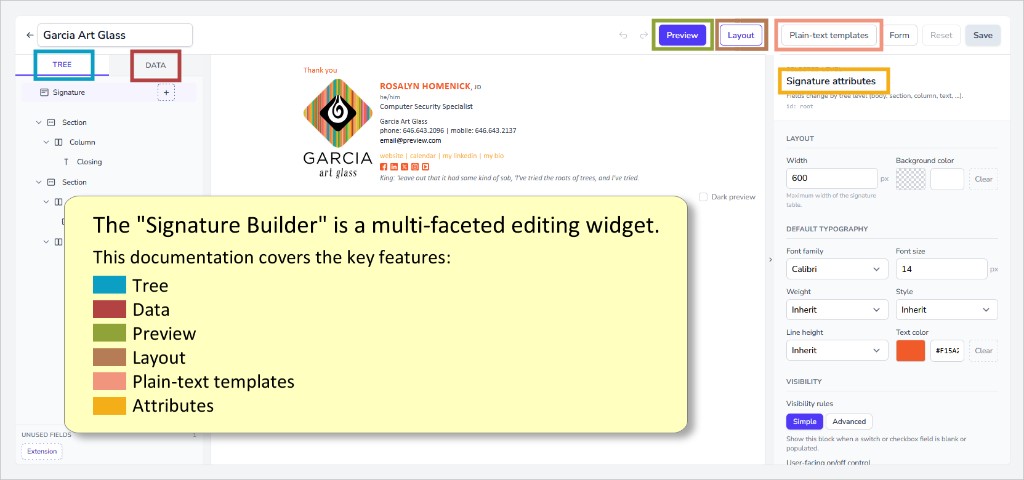
This documentation is broken down into component parts, providing a fairly detailed exploration of what role each plays and how to use it to your benefit.
Tree
The Tree is primarily used to add components to the signature layout.
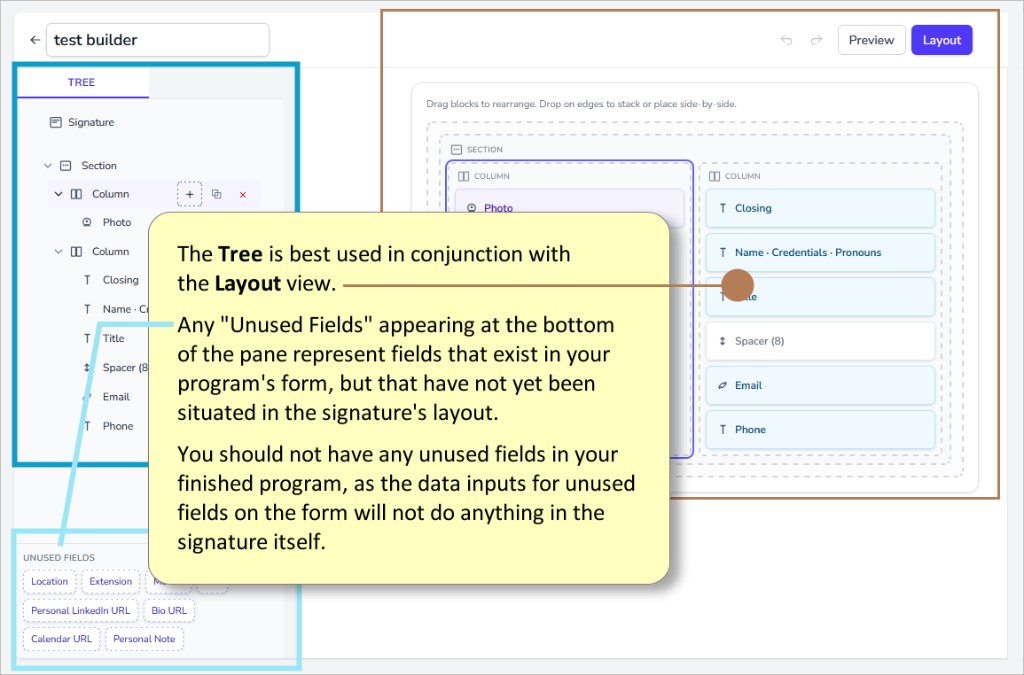
You'll be able to add new content blocks into the signature layout.
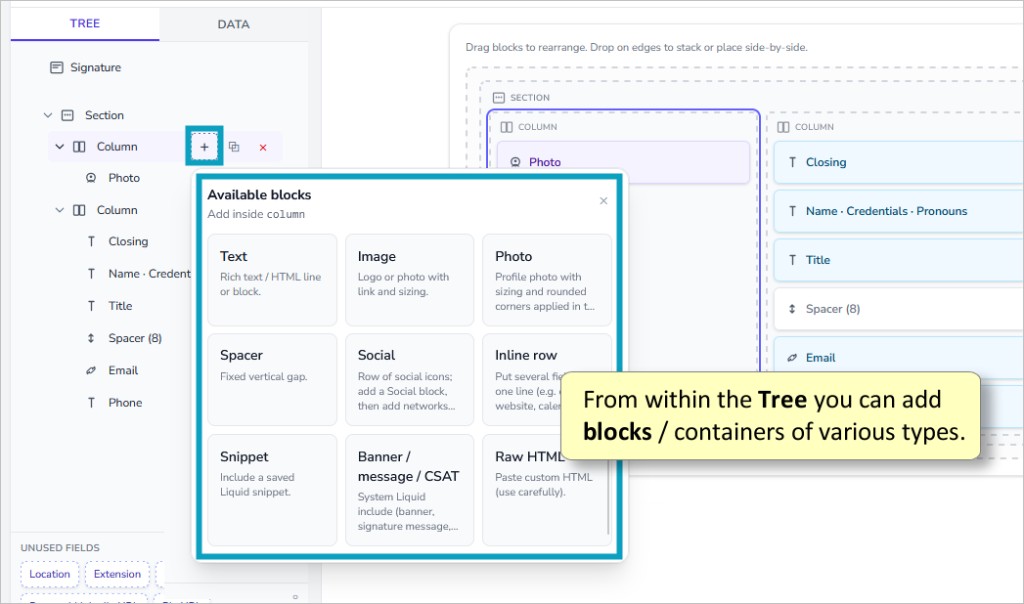
These blocks can then be used to position your data fields.
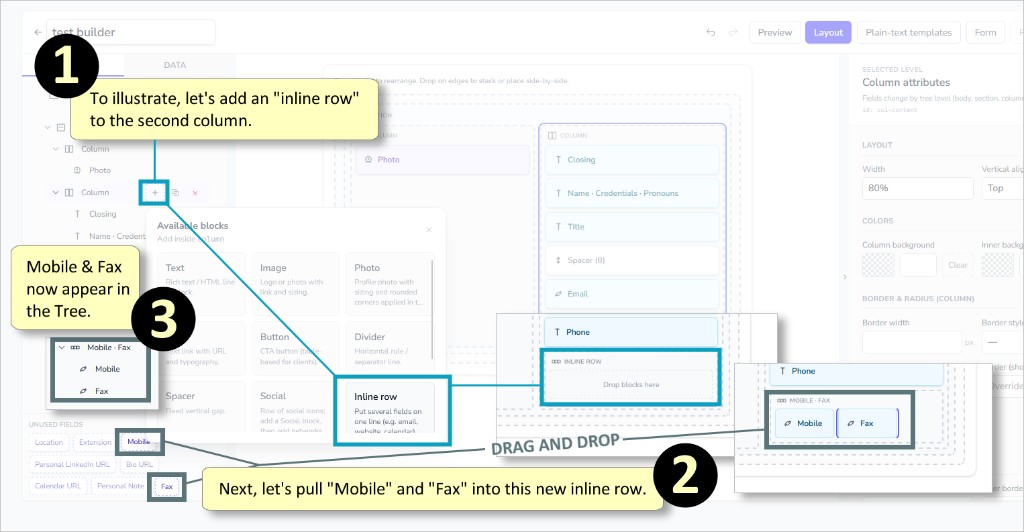
The block types are:
- Text
- Image
- Photo
- Link
- Button
- Divider
- Spacer
- Social
- Inline Row
- Snippet
- Banner / Message / CSAT
- Raw HTML
Following is a brief explanation of each.
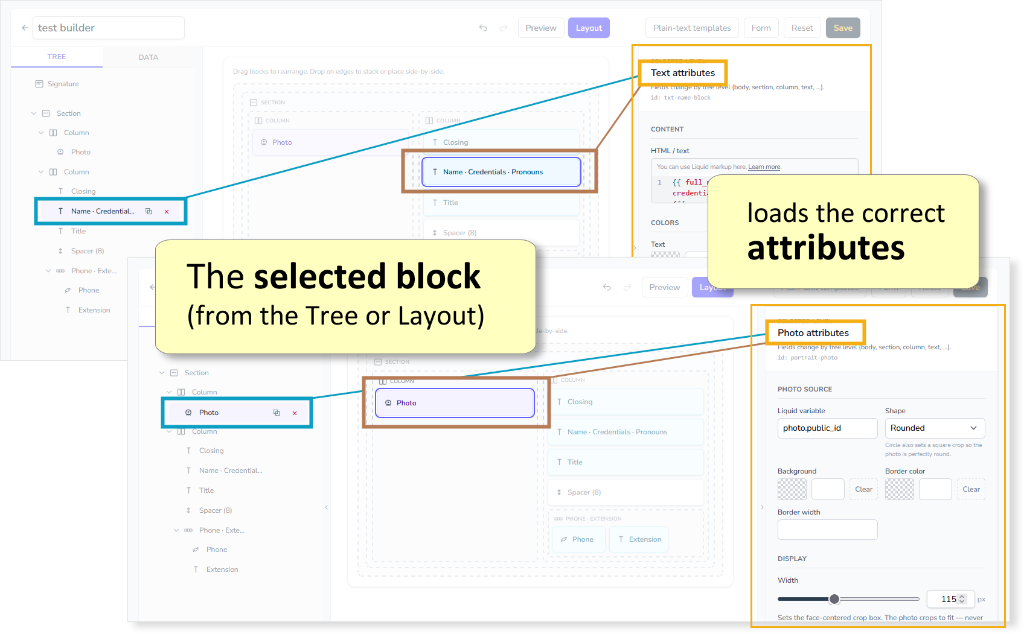
It will be through the use of the "Attributes" feature that you will add definition to your blocks, making them represent what you want and in the way you want it represented.
Text: This block type holds text. The text can be in the form of a user input, for instance a person's nickname, if that was a field you decided to allow for in your program. Alternatively, it can be text that you "hard code" into the signature, such as a company tagline that you want to appear on everyone's signature, like, "Best Service / Best Results / Best Prices"
Image: This block type holds an image (that will be fully defined using attributes).
Photo: This block type represents the placement of a user's photo, when it is uploaded by the user via the user portal.
Link: This block type holds hyperlinked text.
Button: This block type allows you to create a hyperlinked button in the signature (by using attributes).
Divider: This block type allows you to add dividers, like pipes "|" or slashes "/" between items in inline-rows.
Spacer: This block type is used to add spacing between rows of text.
Social: This block type will allow you to add (and format) social media icons to your signature.
Inline Row: This block type allows you to add multiple data items in a single row of your signature. A good example of this would be: Phone | Mobile | Fax
Snippet: (Not currently in use)
Banner / Message / CSAT: Dynasend allows managers to add banners, textual messages, and customer satisfaction surveys (CSAT's) to signatures. This block type can be used to position these within the signature, when used by managers.
We suggest that you add the Banner / Message / CSAT block type to every signature layout, usually at the bottom. If it is not added, managers can experience frustration when attempting to use these features but then not seeing them appear in the signature.
Raw HTML: This block type allows you to add your own HTML code to accomplish something that doesn't seem to be supported by any of our other features.
Layout
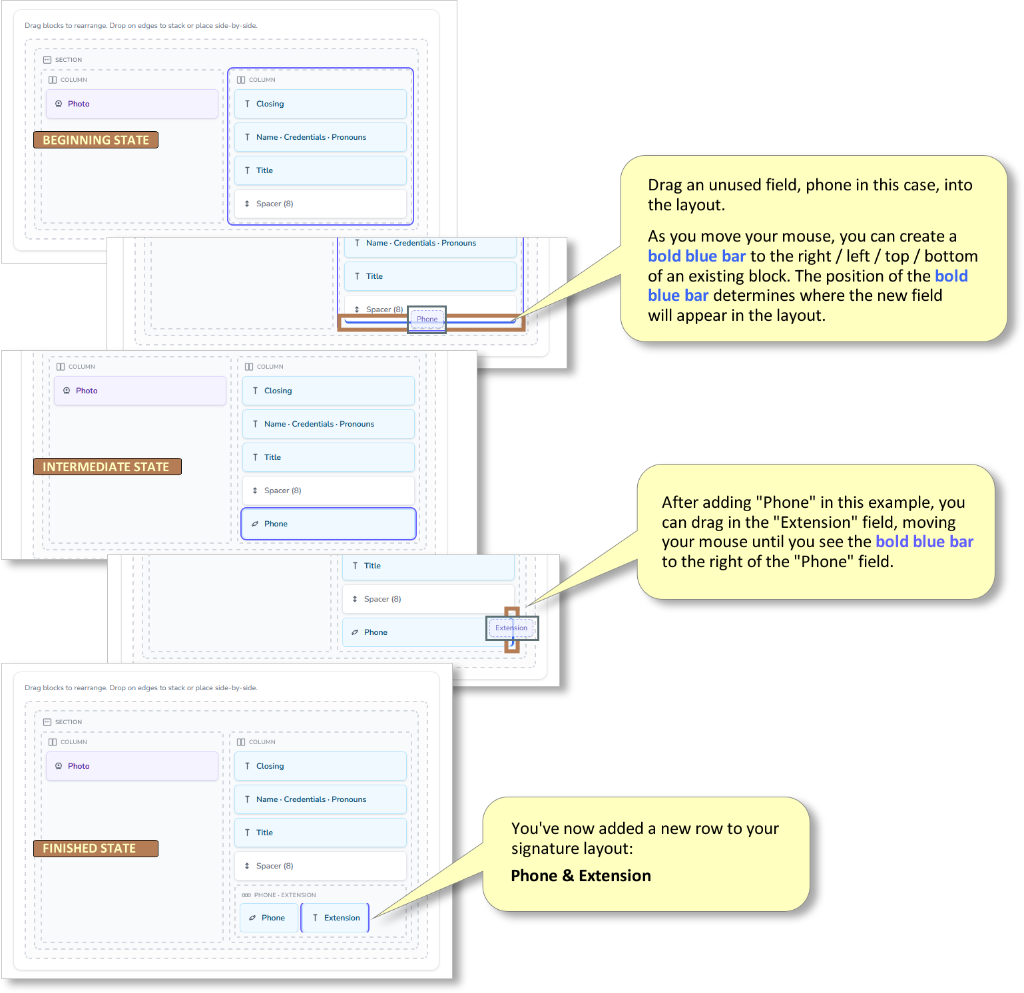
In general terms, the Tree is where you access the data elements / blocks. From there, these elements are moved to (and positioned in) the Layout. As a result, the Layout forms the (visual) structure of your finished signature.
The other useful aspect of the Layout pane (and the Tree) is that you can use it to load the appropriate set of Attributes, enabling all the final formatting options.
Data & Preview
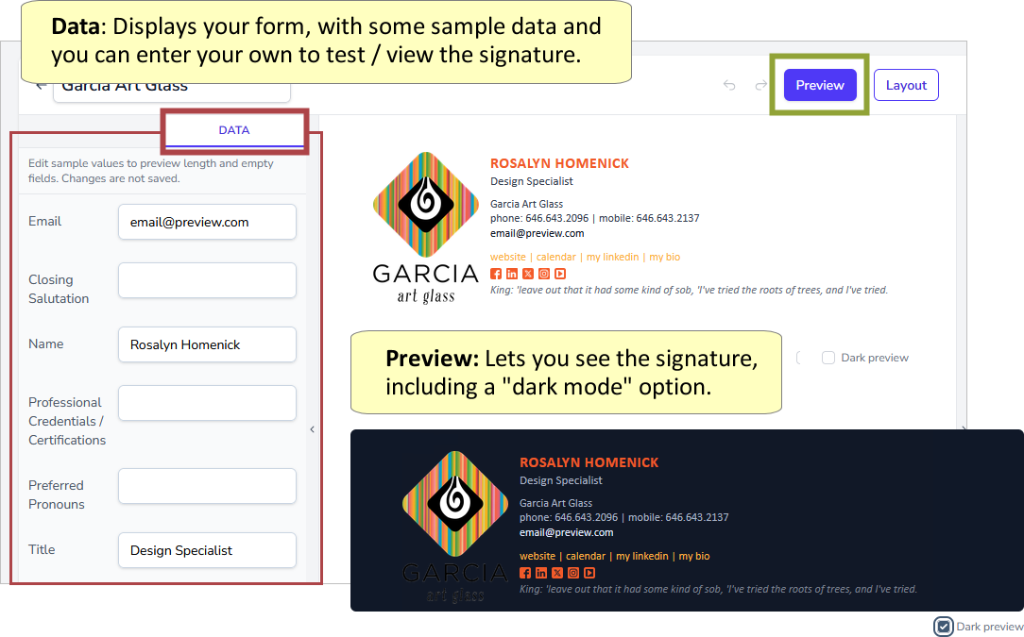
The Data and Preview options are self-explanatory.
The data entry form loads up in a (somewhat) pre-populated state. At times this dummy data can be inappropriate for the data field or otherwise confusing. If you see something strange in your signature preview, click open the "Data" tab and check the dummy data. You can change it if you wish.
Toggling in and out of Data and / or Preview as you develop and fine-tune your signature will allow you to view and test the changes / additions you make to your signature.
Your use of the Data view will also enable you to preview the data-entry form that your users will see. If the form needs adjusting this can be done by clicking the "Form" button at the top of the screen. Instructions for editing the Form are found here.
Attributes
The Signature Builder's "Attributes" pane is where you will be able to truly fine-tune the display of your signature.
The first thing to note is that Attributes is not just a single set of controls, but rather, a set of controls that is specifically matched to the component of the signature you are working on.
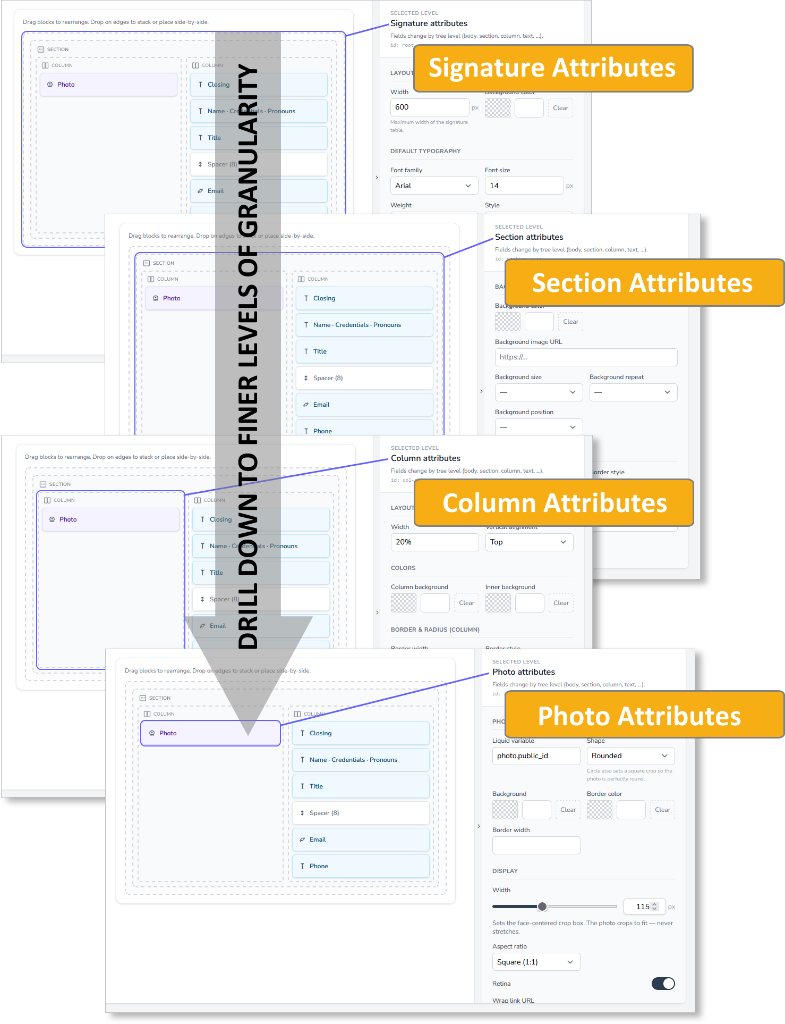
Many of the various settings you can make using attributes are self-explanatory.
There are a few though that are quite important, and their use may not be immediately evident.
HTML / Text
The first one we'll examine is "HTML / text". The graphic below presents an example of how it can be used:
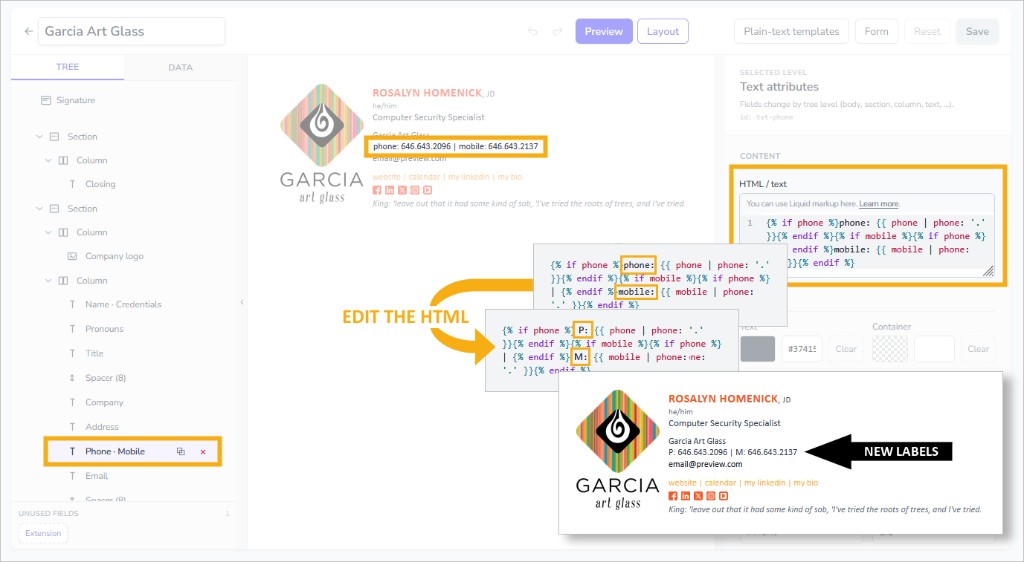
In many cases the HTML you see will contain functional computer code (Liquid) – this will appear within "curly braces" that look like this { code is here }.
Making any changes to the curly braces themselves, or what is contained within them, can break the functionality of your signature.
Visibility Rules
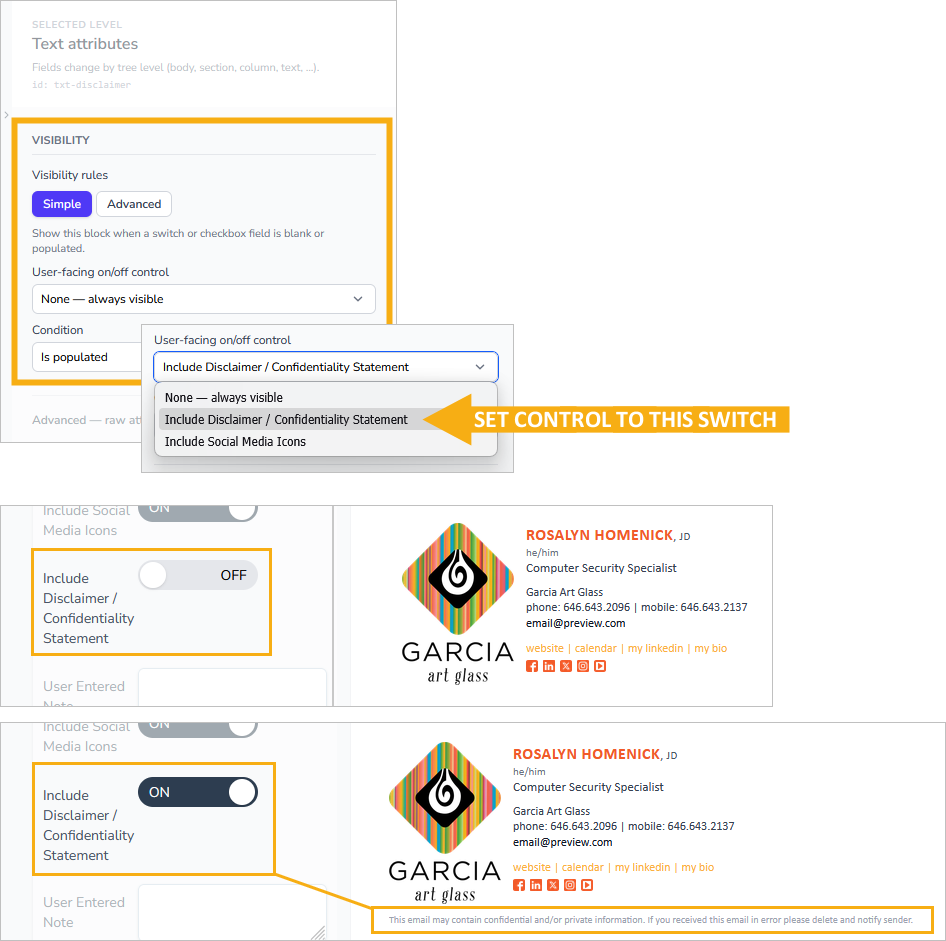
The visibility rules are primarily used to associate Dynasend's user-facing ON / OFF controls with an element in the signature.
When setting up your data entry form, there are two field types that serve as ON / OFF controls:
- Checkbox
- Switch
Any of these fields that you have created will appear in the "User-facing ON/OFF control" drop-down menu. By selecting one of these, you are associating it with the signature element you are working on. Here's an illustration:
Advanced Visibility Rules
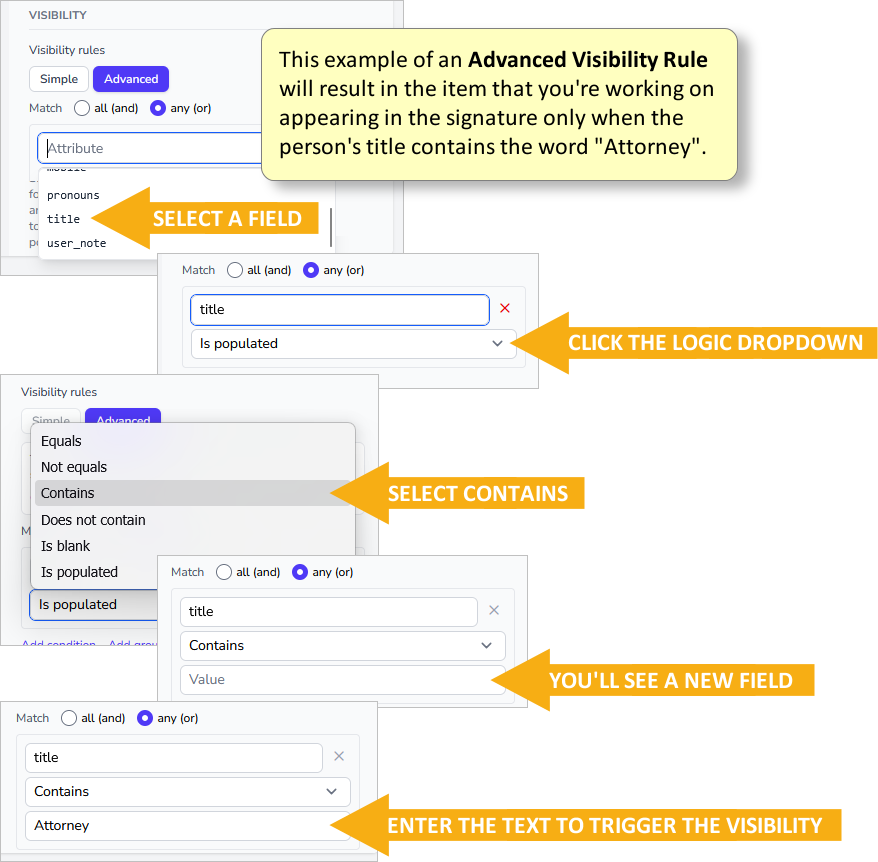
At times a signature program may require some advanced logic – here are three examples:
- If the user selects a location in Mexico, display the Spanish version of the confidentiality statement.
- If the user enters their Realtor NMLS number, add the company NMLS number to the signature also.
- If the user's email address is max.edmunds@blalock-martin.com add the SuperLawyers award badge.
The following graphic illustrates how this works:
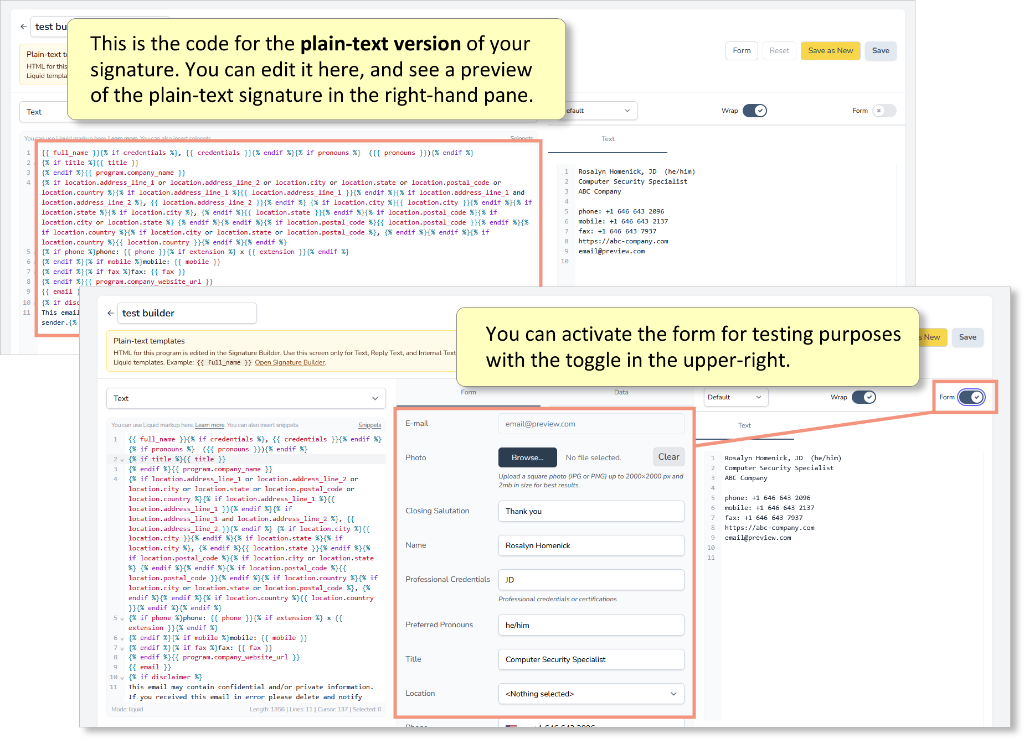
Plain-Text
Dynasend maintains a corresponding "plain text" version of the HTML email signature, for injection into replies to message that were originally formatted as plain-text.
If your signature began its life via our Guided Setup process, a generic plain-text signature was automatically created. It's highly likely that this generic version will suffice, and there will never be any call to edit the plain-text version of the signature.
In other words, it's unlikely that you'll ever need to utilize this plain-text editing tool.