Liquid / HTML Editing Documentation
Advancing to our highest editing level, "Liquid / HTML", fully opens Dynasend's capabilities. This documentation covers the following:
Account Setup
Your Dynasend "account" is where you will configure the top-level settings that carry through to your managers and users.
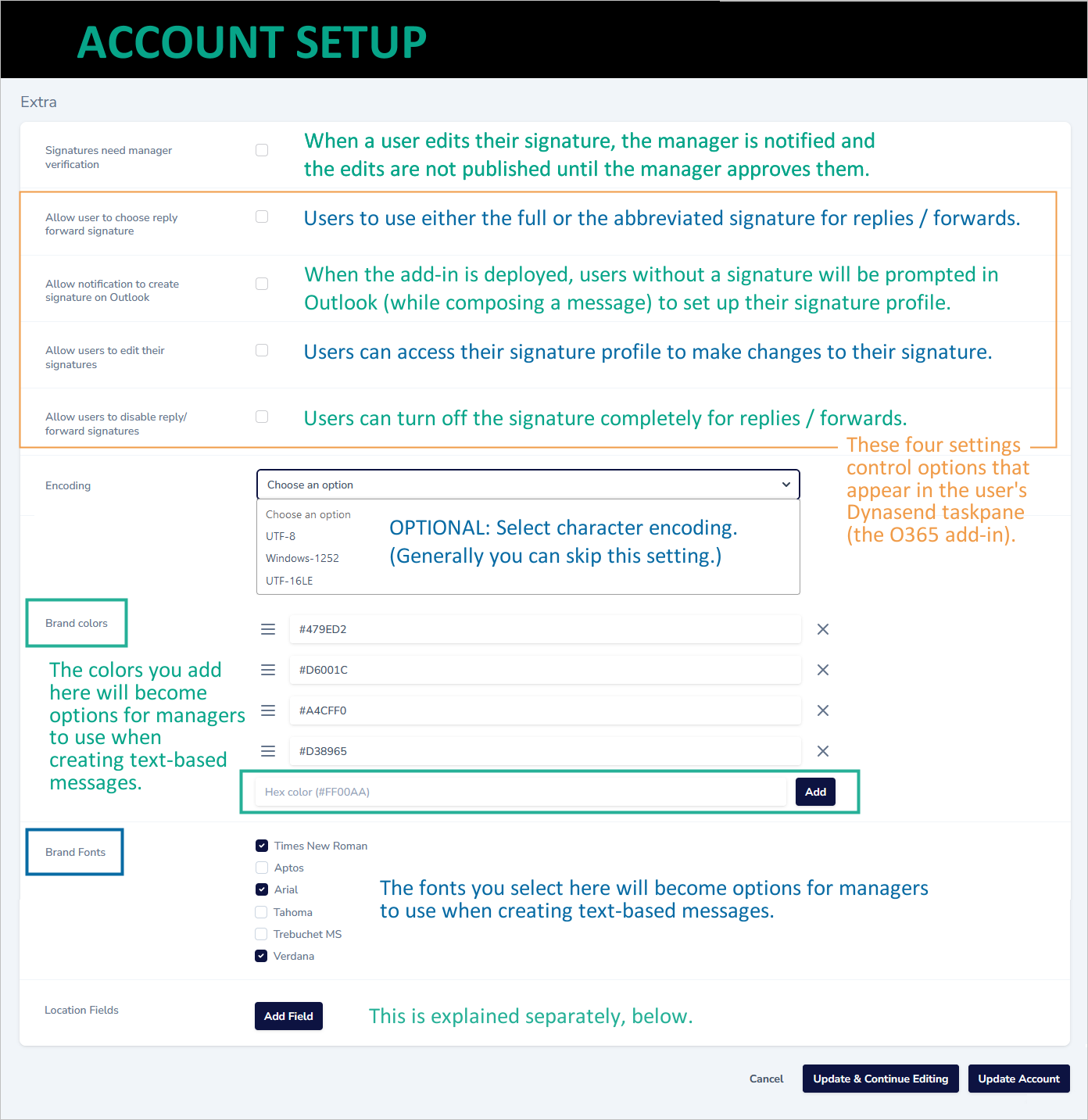
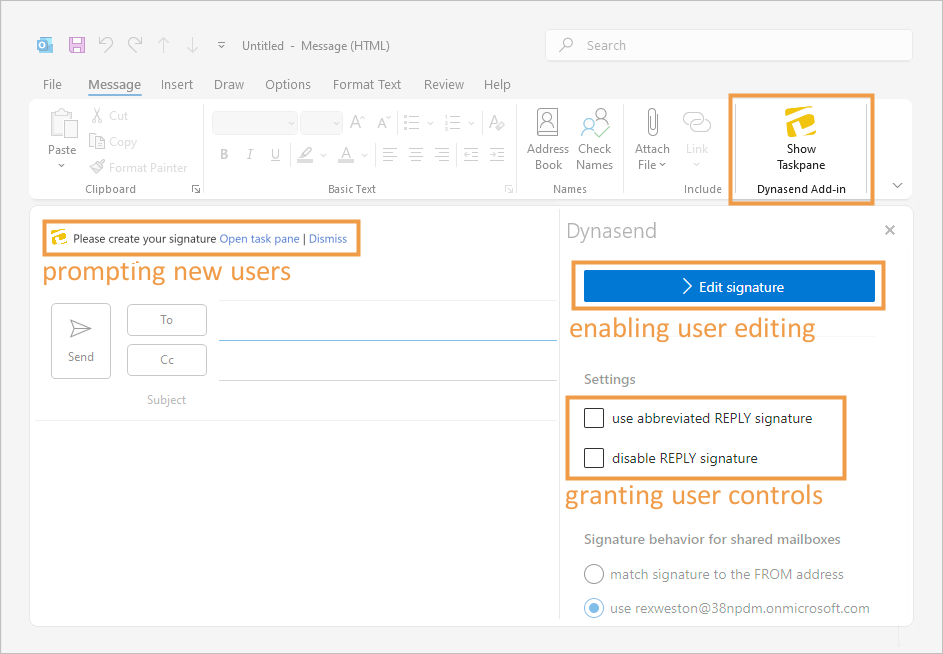
The graphic below illustrates how some of the settings are translated to the user's Dynasend taskpane.
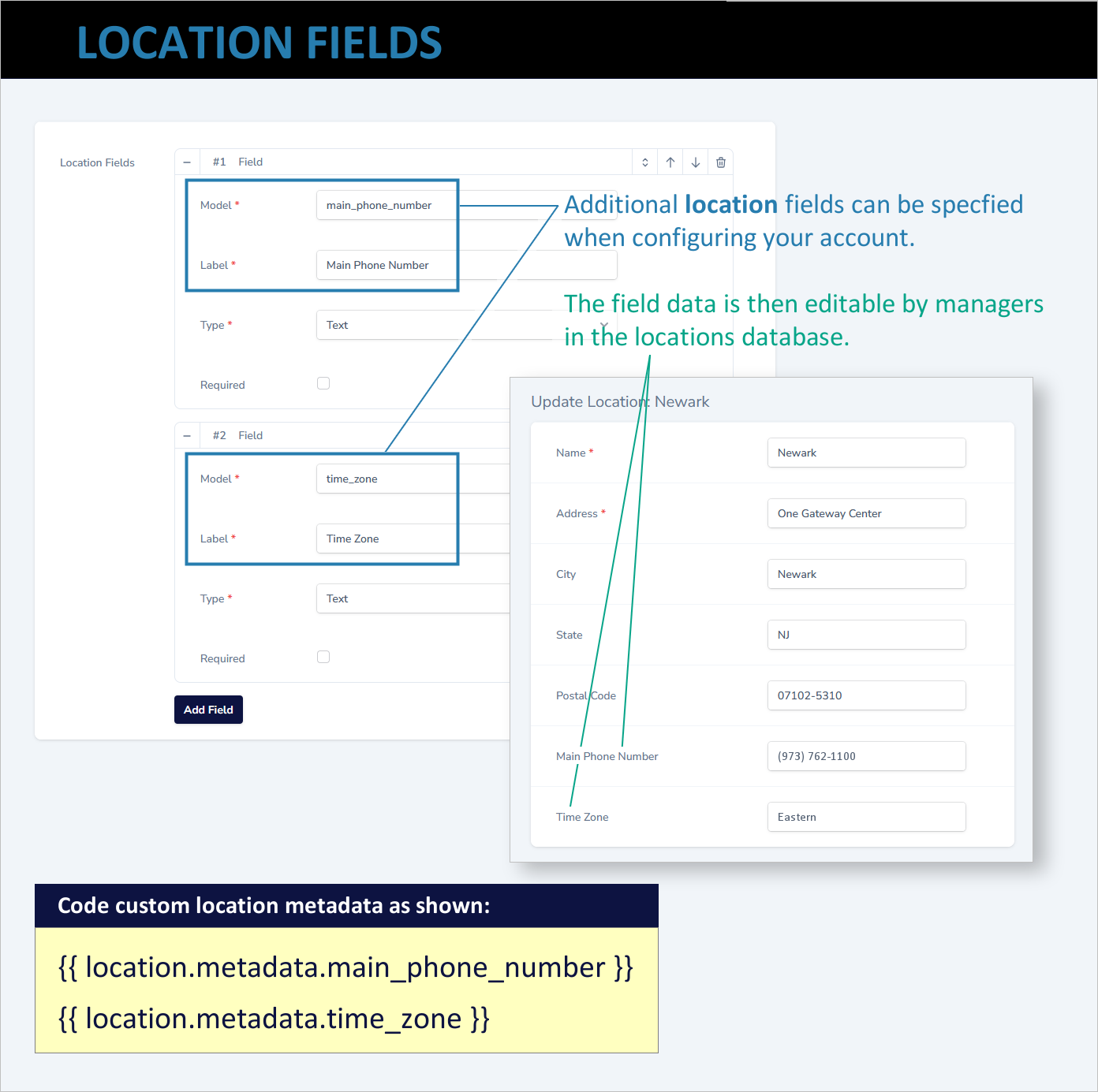
Custom "Location Fields"
Custom location fields can be specified as-needed. The value in using these is that they become mainainable by managers, so as changes are needed, or as new locations are added, managers can input the data, rather than needing to come back to the developer for modifications.
Program & Form Setup
In Dynasend, a "program" equates to a cohesive collection of email signature templates. These templates include, at a minimum, an default HTML template and a TXT template, and optionally, reply, internal, and Salesforce templates as well.
The program setup process is relatively straight-forward and infinitely flexible. When setting up a program this is the screen you will see:
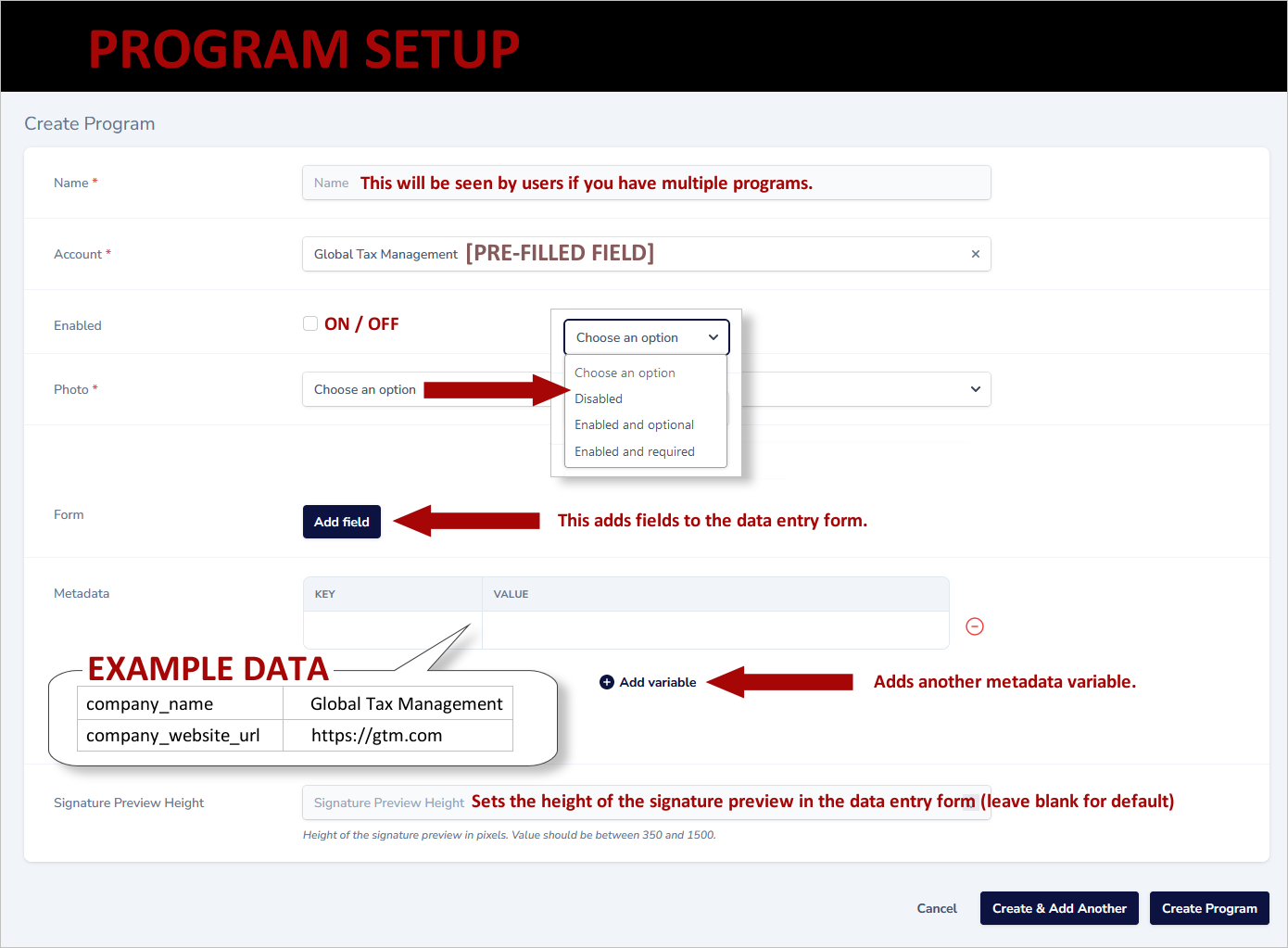
The most important aspect of the program setup is the creation of the template variables and the resulting user-facing signature profile form. This process is triggered by the Add field button in the middle of the programs form.
When you click "Add field" you will be presented with a drop-down asking you what type of field you wish to add. The following graphic illustrates the options and provides representative samples of how the various field types will appear on the user profile form.
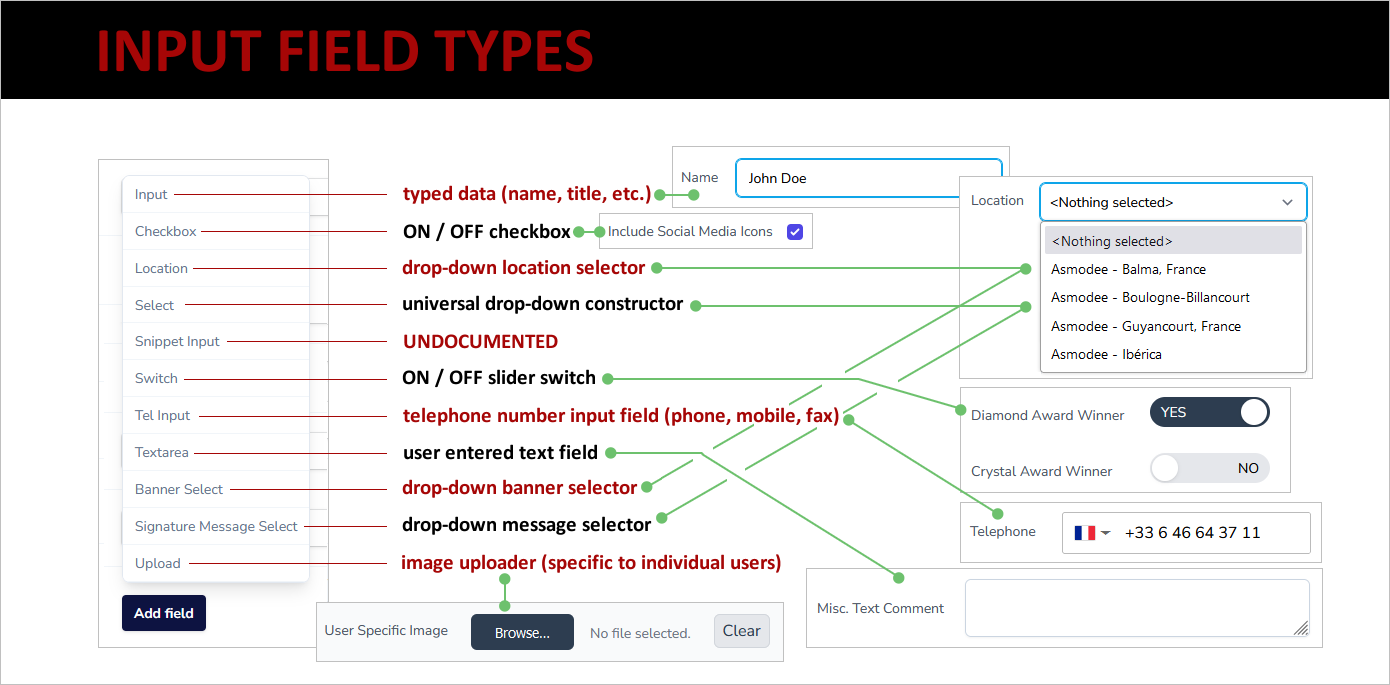
After selecting the type of input needed, you'll be presented with a set of options specific to your particular data field.
Form Settings - Field Type: Input
Each field type has a series of specific settings that are associated with it.
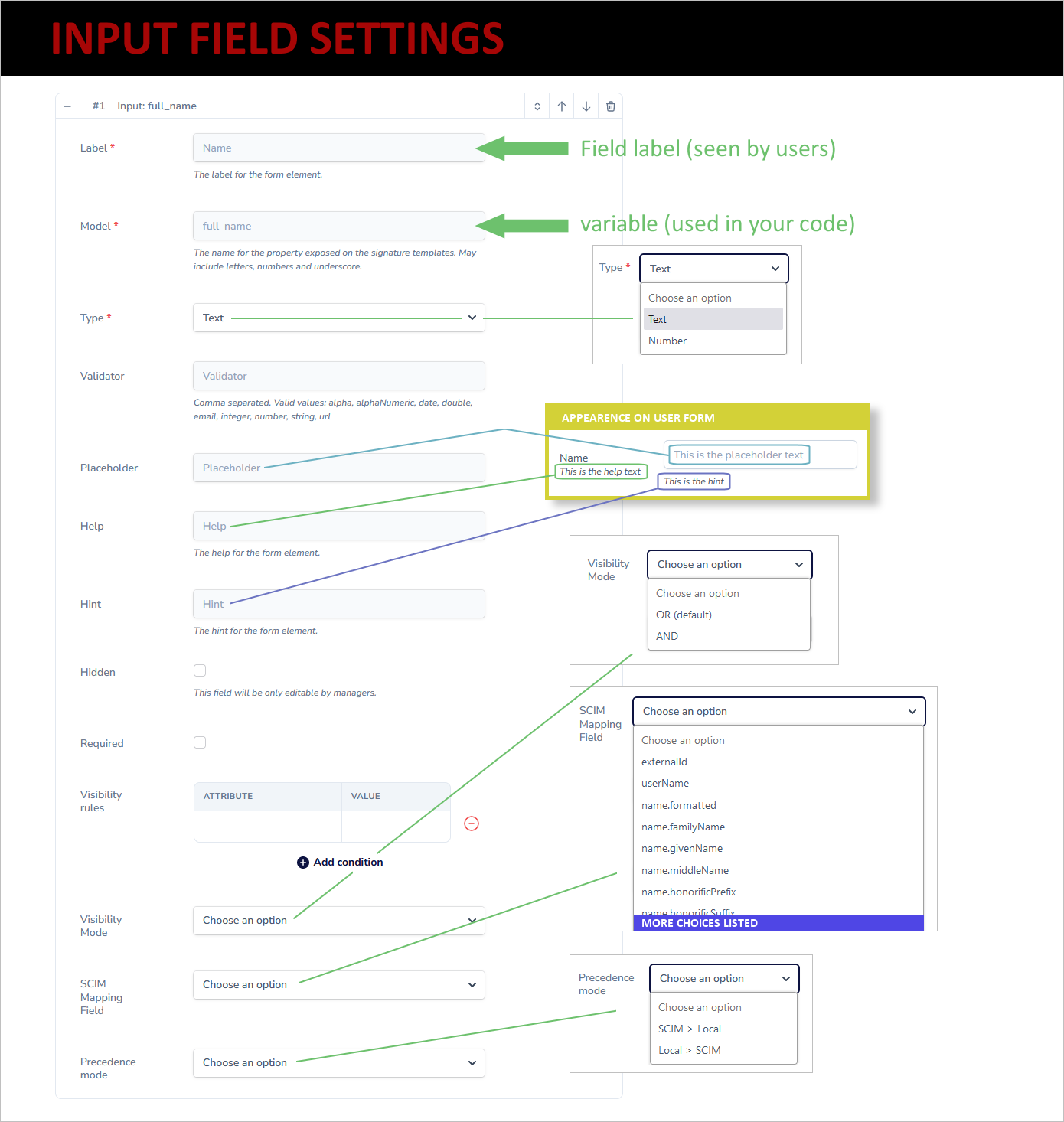
Following it a more detailed explanation of the settings that are associated with this data type.
1. Label
This is the field label that will appear on the user profile form. You can use HTML font formatting, if needed, to enhance the appearance of the label.
2. Model
This is the variable name that you will use in your email signature templates. It can include letters, numbers, and underscores. Examples include:
- full_name
- title
- title2
- location
- linkedin_url
3. Type
Options are Text and Number. If you select number, users will be limited to numbers only.
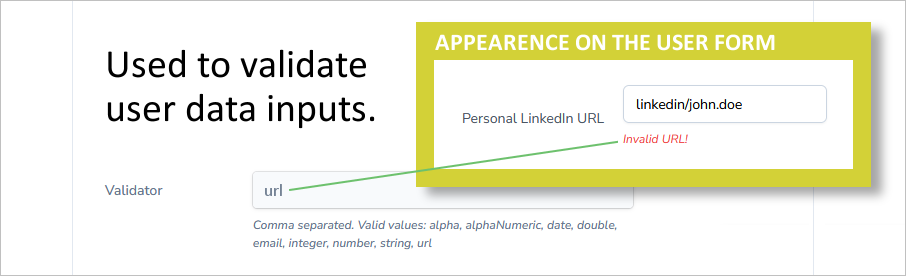
4. Validator
Comma separated. The most useful valid values are
- url
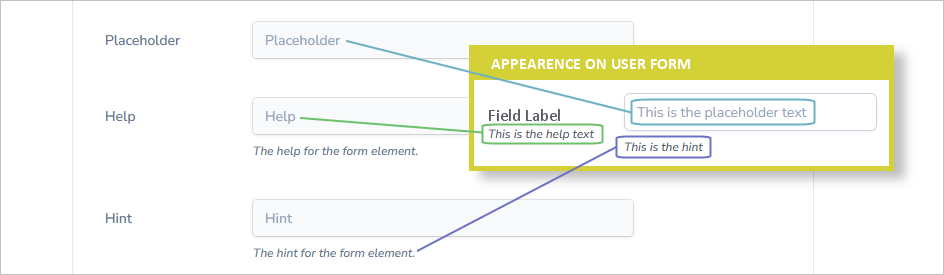
5. Placeholder / Help / Hint
The placeholder, help and hint enable you to add messaging that may be useful to users when completing their profile form:
6. Hidden
This is a setting that hides the input field from users, so when they are accessing the user profile form, to configure their signature, they cannot see the hidden fields. Hidden fields will be accessible by anyone who has been granted "manager" credentials, so these managers can edit this field for the user, as-needed. Use cases include:
- Title, allowing HR (or another signature manager) to set the user's title, rather than trusting them to list it honestly.
- Awards, toggling on special award badges that are given out only to certain employees.
- One-off features, letting you add a feature for one (or a few) users that doesn't apply to the larger user base (and hence would only be confusing if exposed on the form).
7. Required
This makes a field required - the user cannot save their profile without completing this field.
8. Visibility Rules
Visibility rules can be used to dynamically control whether or not the user sees the field on the form they are completing. as illustrated here:
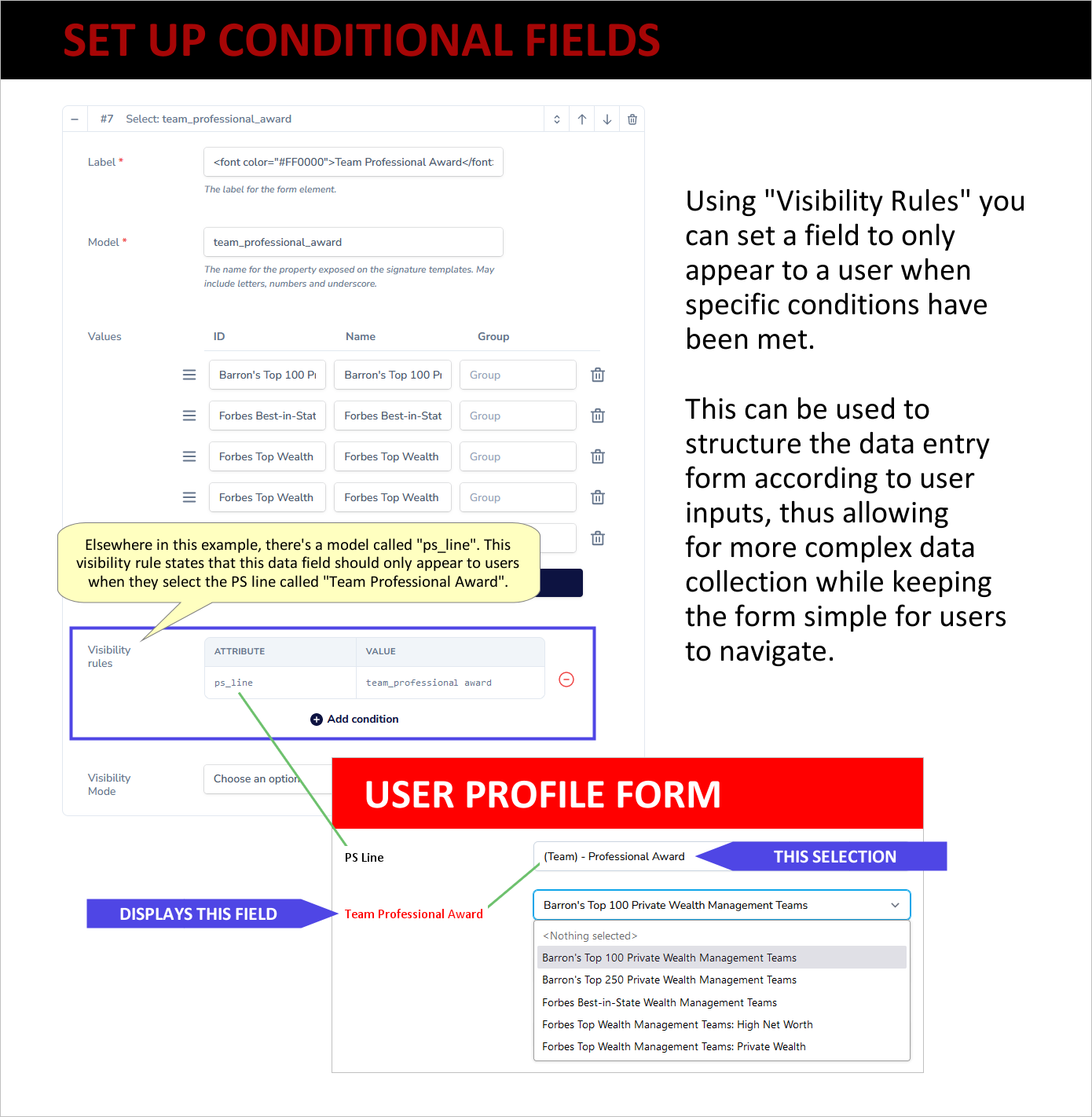
In this case the program offers a PS line that users can add to their signature. There are a number of pre-written options for the PS lines, and some of them have further data choices embedded in them. In this case, the finished PS line looks like:
I'm proud to have been honored as a <selection is inserted from the conditional drop-down> in the past year.
This particular drop-down would not appear to a user if they had selected a different PS line option.
9. Visibility Mode
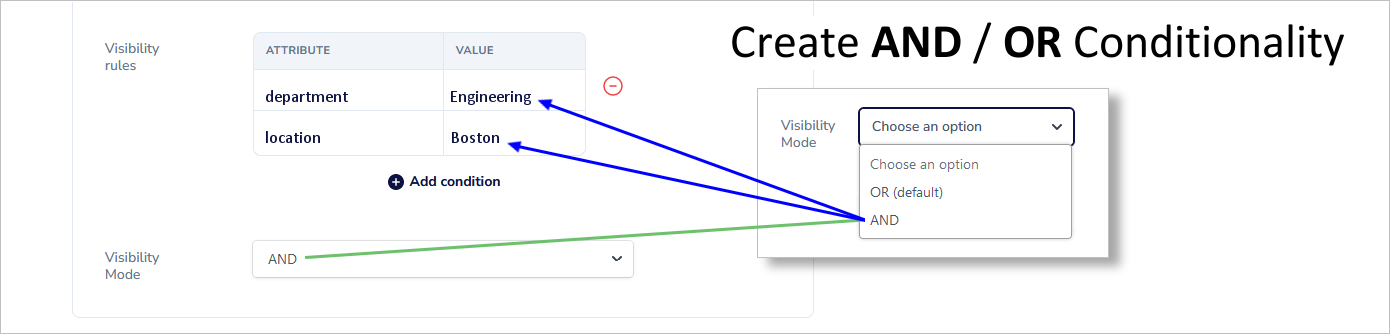
The visibility mode is used in conjunction with visibility rules, as illustrated here:
10. SCIM Mapping Field
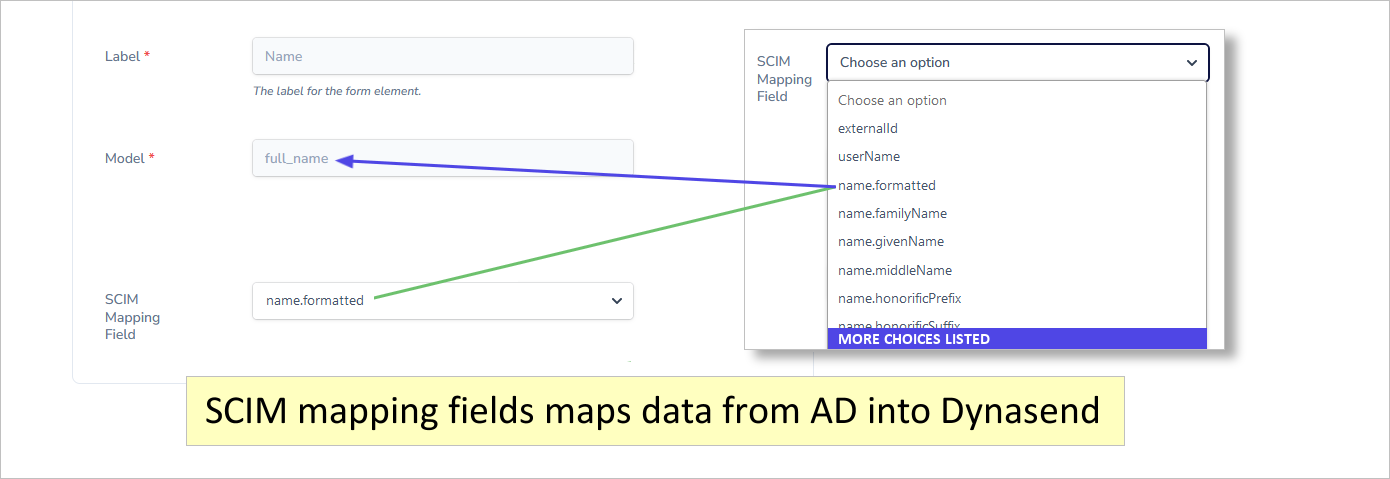
SCIM mapping allows you to match data from your AD (when that sync has been configured) to the Dynasend database:
11. Precedence Mode
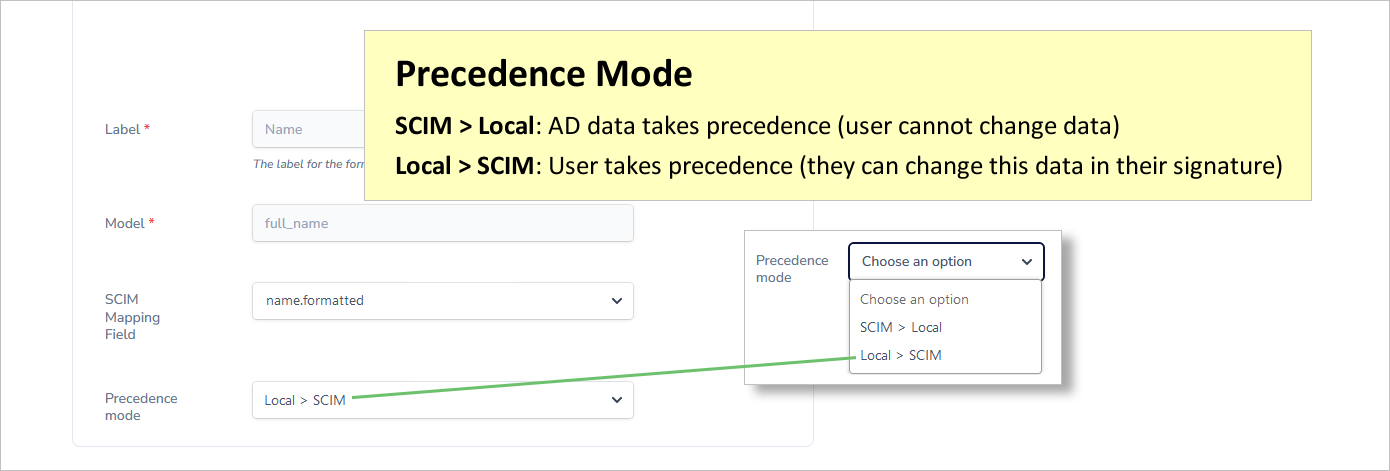
By setting the precedence mode (when AD sync has been configured) you are able to specify whether AD will be the "source-of-truth" or whether the users themselves will be the source-of-truth:
Form Settings - Field Type: Checkbox
The form settings for a checkbox are all explained under the section for "Form Type - Input".
Form Settings - Field Type: Location
Most of the form settings for a location field are explained under the section for "Form Type - Input". The one form setting that is unique to a location field is "allow custom address":
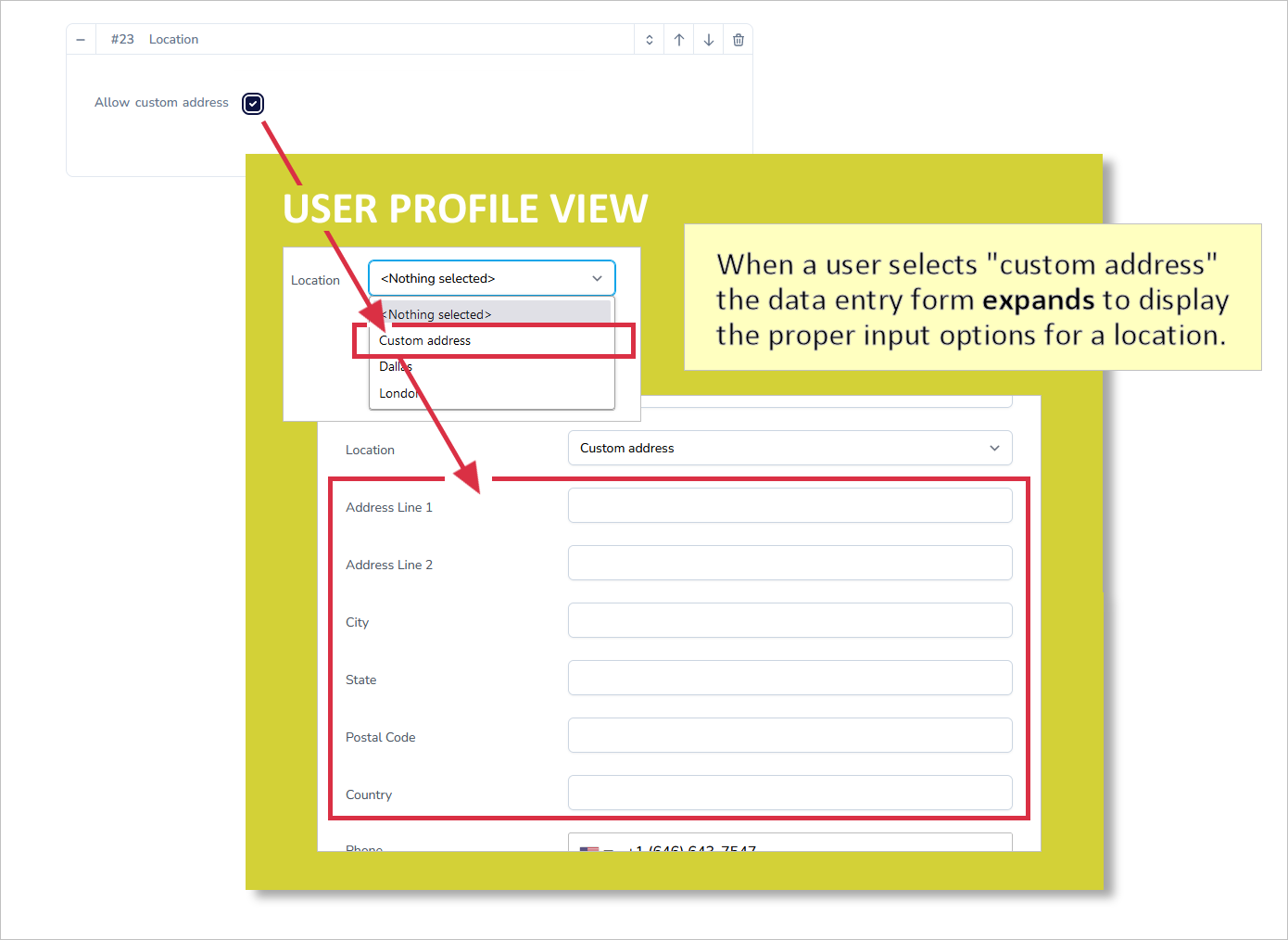
Form Settings - Field Type: Select
Most of the form settings for a location field are explained under the section for "Form Type - Input". The one form setting that is unique to a location field is "values":
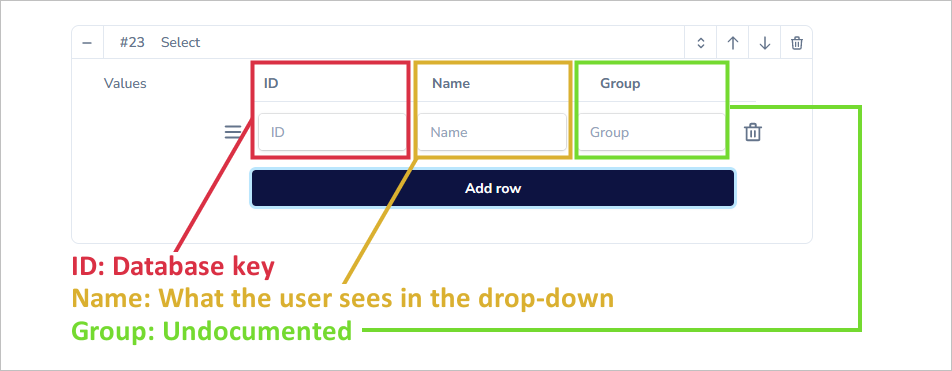
The ID is the database key, so if you change it after you have active users, their selection of this data item will be lost.
The name is what the user will see in the drop-down menu that appears on the data entry form (user profile).
The most appropriate way of utilizing this is to set an ID that you will never change and a NAME that will be useful to users in making the correct selection.
Then, after doing this, you can setup your signature HTML to produce the desired output by using code like:

Form Settings - Field Type: Switch
The form settings for a switch are all explained under the section for "Form Type - Input".
Form Settings - Field Type: Tel Input (telephone)
Most of the form settings for a Tel Input field are explained under the section for "Form Type - Input". The two form setting that are unique to a Tel Input field are "countries" and "format":
Note: A complete list of country codes can be found here. Use the "Alpha-2" codes.
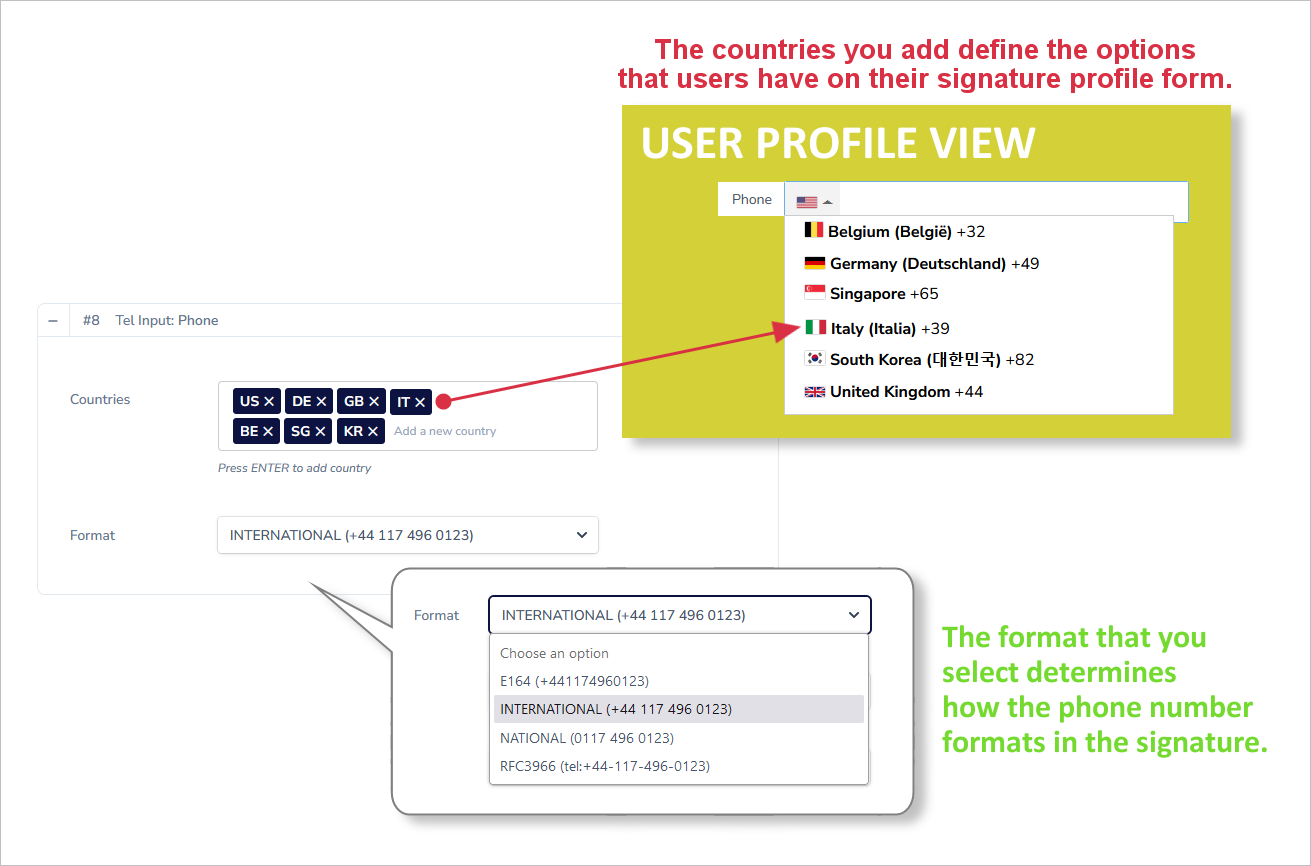
Form Settings - Textarea
Most of the form settings for a Textarea field are explained under the section for "Form Type - Input". The two form setting that are unique to a Textarea field are "Max" and "Rows":
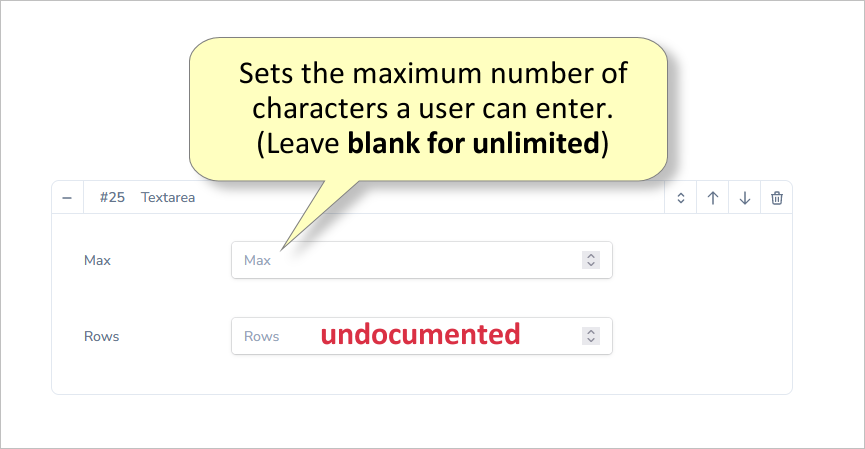
Form Settings - Banner Select
The Banner Select field is pretty much automatic - all you need to do is to give it a label.
When a Banner Select field is included in the form users will be able to see all active banners in a drop-down menu and select whichever one they want to have appear in their signature.
Form Settings - Signature Message Select
This is exactly the same as the Banner Select except that it gives users access to signature text-based messages/notes, instead of banners.
Form Settings - Upload
The form settings for an upload are all explained under the section for "Form Type - Input".
Related docs:
Program Actions
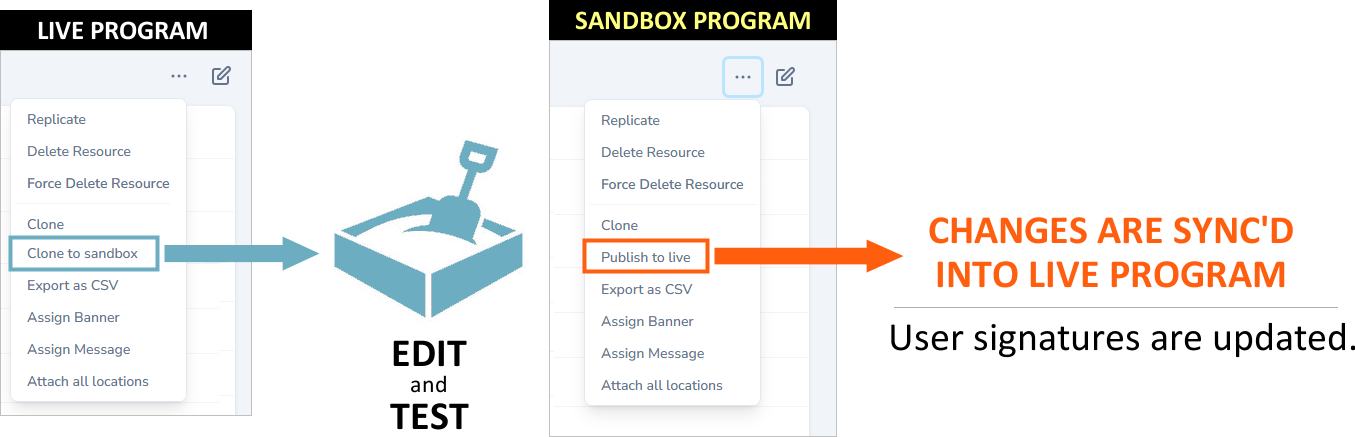
Dynasend offers a number of program actions, the key ones being illustrated here:

Of these three actions, the "Clone to sandbox" is the most important. Cloning to the sandbox is designed to enable you to modify and test an existing, live, program, without the risk of adversely affecting the signatures that are in use. Once a program has been cloned to the sandbox, you can work on it as-needed in the sandbox environment (add new data fields, modify signature HTML, etc.) with no impact on your live program. When you're satisfied with the changes, you can "Publish to live" to apply the changes to your live program / existing signatures.
Related docs:
Editor
The editor functionality of Dynasend is where the template coding occurs. The screen itself is divided into three horizontal panes (with the middle pane being optionally toggled on or off).
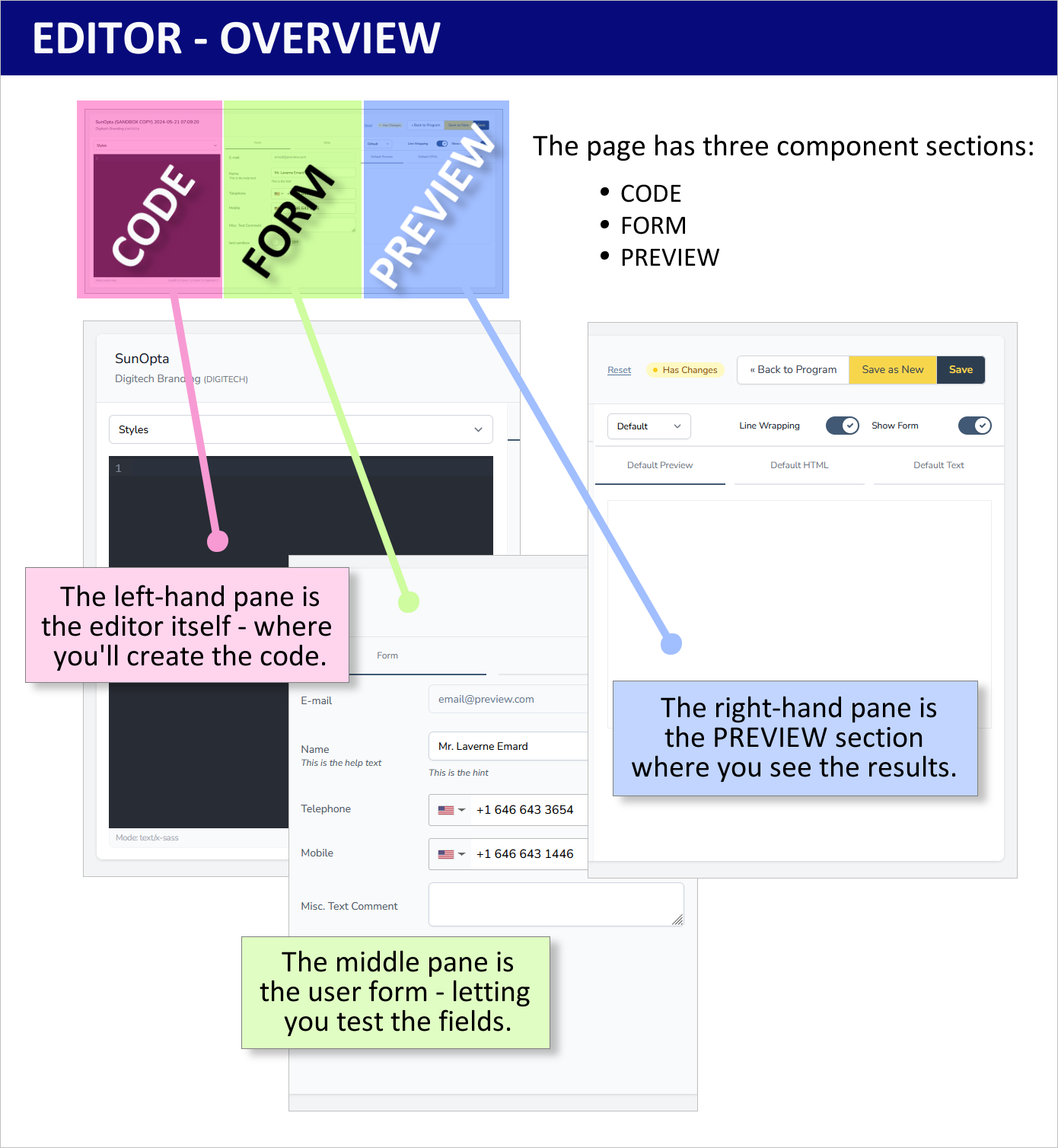
Editor Pane
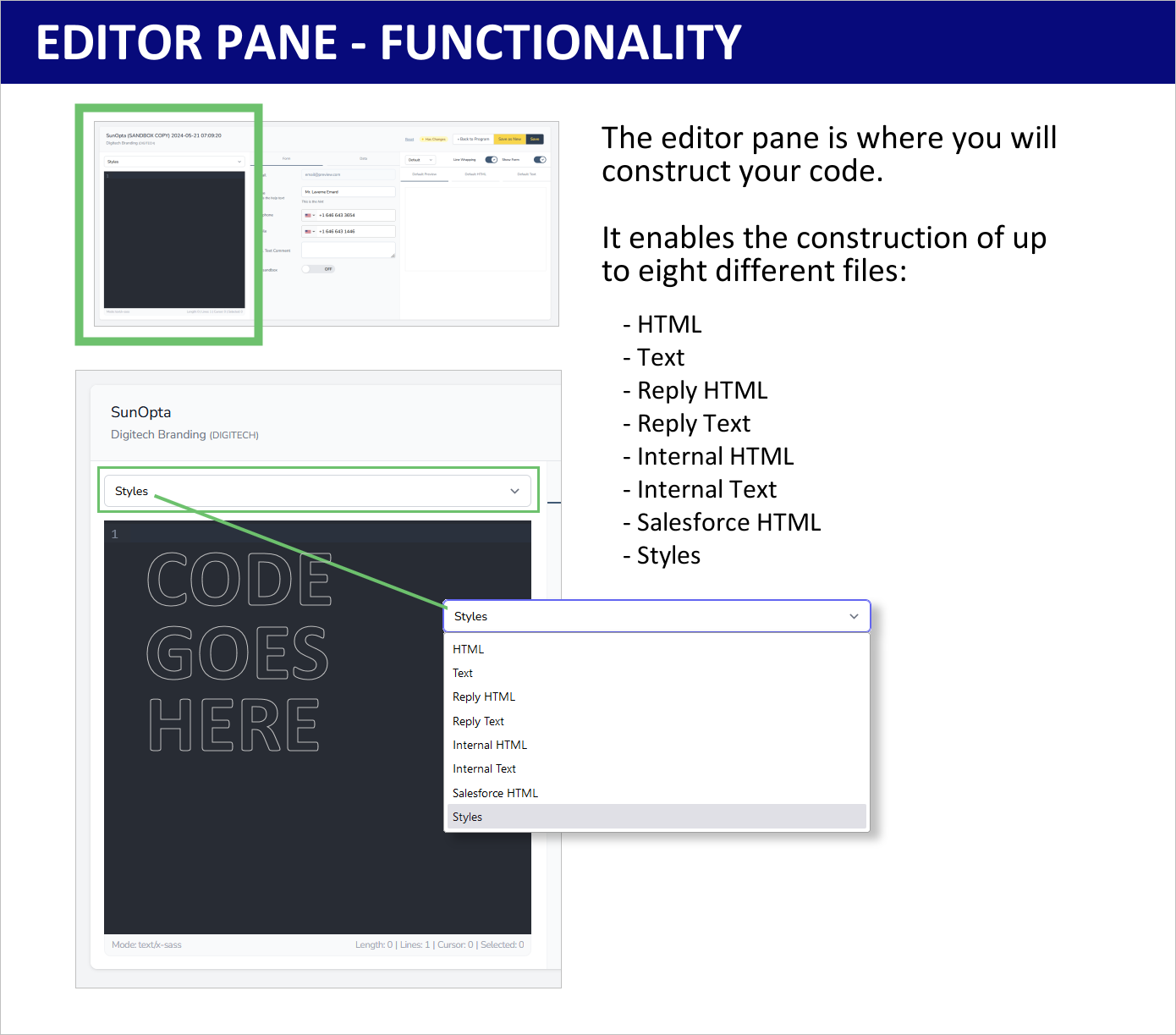
The left-hand page is the editor itself. The drop-down at the top allows you to select the file that you will be editing.
Dynasend extends the signature HTML (and TXT) through the use of the Liquid programming language - we recommend these resources:
- Liquid liquid.
- Liquid API liquid api.
The three essential files for any program are:
- HTML
- Text
- Styles
The other files are optional, to be used as needed. Our page on configuration options provides an overview of the reply and internal signatures.
Form Pane
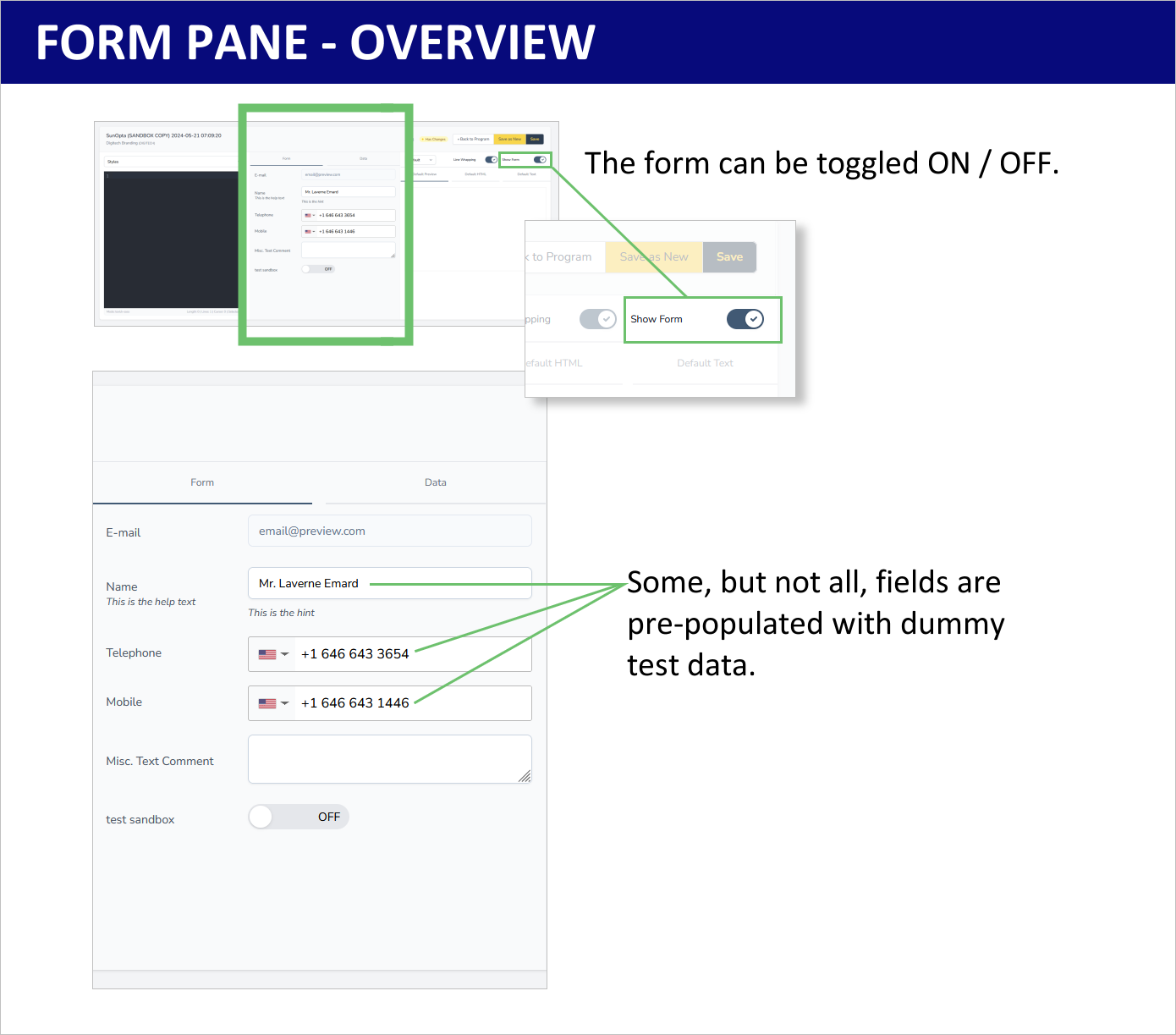
The center-pane displays the user profile form, as you have set it up when configuring your program. The form can be toggled on and off (by default it is off). Displaying the form allows you to preview it, and more importantly at this stage, allows you to enter test data into the various fields so that you can verify that your code is functioning correctly.
Note #1: It's likely that some of the fields will be pre-populated with dummy test data - this is purely for testing and means nothing to your finished project.
Note #2: The form you see here may not be an exact representation of what a user will see. For example, if you have elected to make some fields "hidden", a user would not see them but they will still appear on this version of the (form designed for testing your code).
Preview Pane
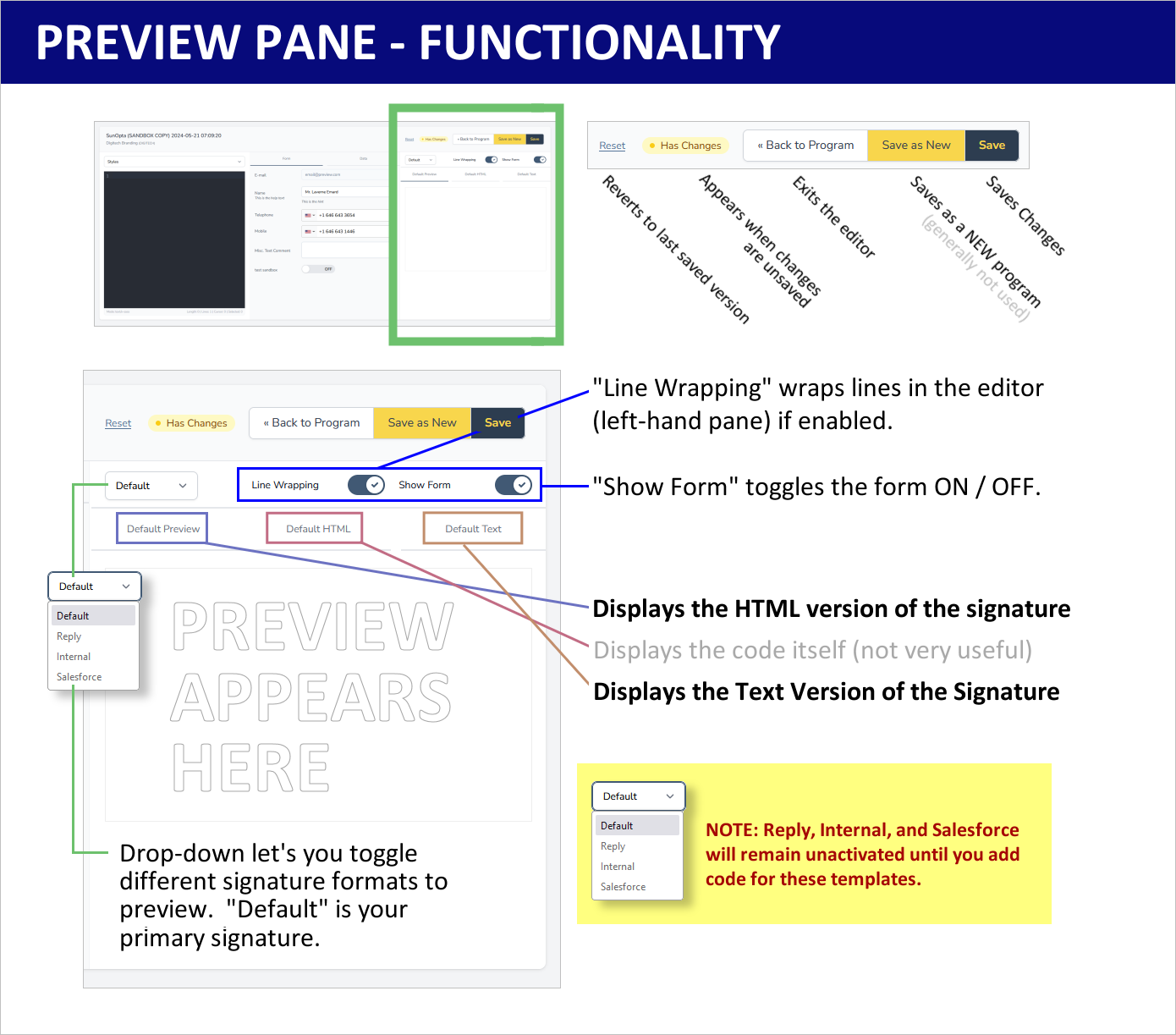
The right-hand pane is the preview pane, which will enable you to preview the email signature in its various configurations.
The essential SAVE button is also located above the right-hand pane.
Related docs:
File Uploader
Leveraging Our Edge Network CDN
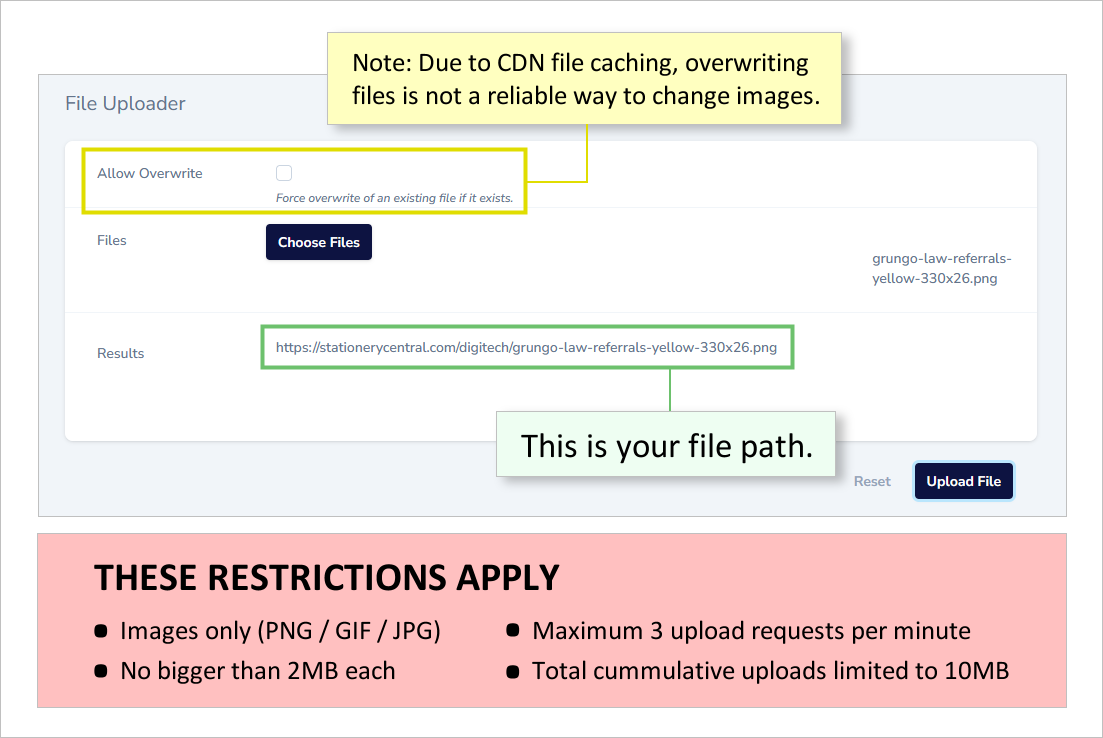
The single most important aspect in email signature performance is the accessibility and delivery speed of the images in the signature - image reliability affects both senders and recipients. We utilize an optimized edge network with images residing at 300 centers around the world. Since 2017 we've been serving roughly 1.6 billion images per month (2 terabytes of data) without any significant outages*. The file uploader enables you to host your signature images on our CDN.
Related docs:
Coding
Fixed Variable Naming Conventions
Dynasend utilizes a number of fixed variable naming conventions, these are built into the platform and must be used (when needed) as shown here.
LOCATION FIELDS
{{ location.address_line_1 }}
{{ location.address_line_2 }}
{{ location.postal_code }}
{{ location.city }}
{{ location.state }}
{{ location.country }}
PHOTO URL'S
{{ photo.public_id }}
{{ uploaded_user_image.public_id }}
OTHER URL'S
{{ signatures.vcf.url }}
{{ location.map_url }}
{{ email }}
<a href="{{ signatures.vcf.url }}"><img src="{{ vcard_qr }}" width="100" />
Widgets (Code Blocks)
Dynasend has three embeddable widgets - the banner management functionality, the text-based message functionality, and the CSAT / Survery functionality. The code blocks for these widgets are presented below.
We strongly recommend that you embed all three of these into your code. They will do nothing unless and until a designated "manager" decides to utilize the widgets. If the code block has not been embedded, then the widget will not work which may lead to frustration / confusion at some point in the future.
{%- if signature_message -%}

<tr>
  <td style="border-style: hidden; padding-top: 8px; padding-bottom: 6px; white-space: nowrap;" colspan="3">
    <div class="text-message">
      {%- include 'signature_message' -%}
    </div>
  </td>
</tr>
{%- endif -%}

{%- if banner -%}

<tr>
  <td style="border-style: hidden; padding-top: 8px; padding-bottom: 0px; white-space: nowrap;" colspan="3">
    {%- include 'banner' -%}
  </td>
</tr>
{%- endif -%}

{%- if csat -%}

<tr>
  <td style="border-style: hidden; padding-top: 8px; padding-bottom: 0px; white-space: nowrap;" colspan="3">
    {%- include 'csat' -%}
  </td>
</tr>
{%- endif -%}
Metadata Syntax
Metadata can be used in different ways in Dynasend, the two most frequent being program-specific and location-specific. The syntax for these is illustrated below via a few example.
METADATA URL'S (Program level examples)
{{ program.company_website_url }}
{{ program.company_name }}
METADATA URL'S (Location level examples)
{{ location.metadata.time_zone }}
{{ location.metadata.store_hours }}
Cloudinary
SAMPLE CODE
Unknown Graphic Size, Optimized for HD: When using the field type "UPLOAD" -
{{ uploaded_user_image.public_id }}
the size of the image that the user uploads will often be unknown. Following is code designed to display the user's uploaded graphic at half size, hence optimizing it for HD / Retina Display.
<img src="{{ uploaded_user_image.public_id | cloudinary_v2: width: uploaded_user_image.width, height: uploaded_user_image.height }}" width="{{ uploaded_user_image.width | divided_by: 2 }}" />
Following is code to make an image round and Optimize it for HD - here it stores the image as 228px by 228px and displays it at 114px by 114px:
<img src="{{ photo.public_id | cloudinary: 228, 228, 'round' }}" nosend="1" border="0" width="114" height="114" alt="Photo" title="Photo" />
Liquid
We use Liquid templating language for dynamic content in email signatures.
For filter references, see:
Related docs:
vCard Mapping
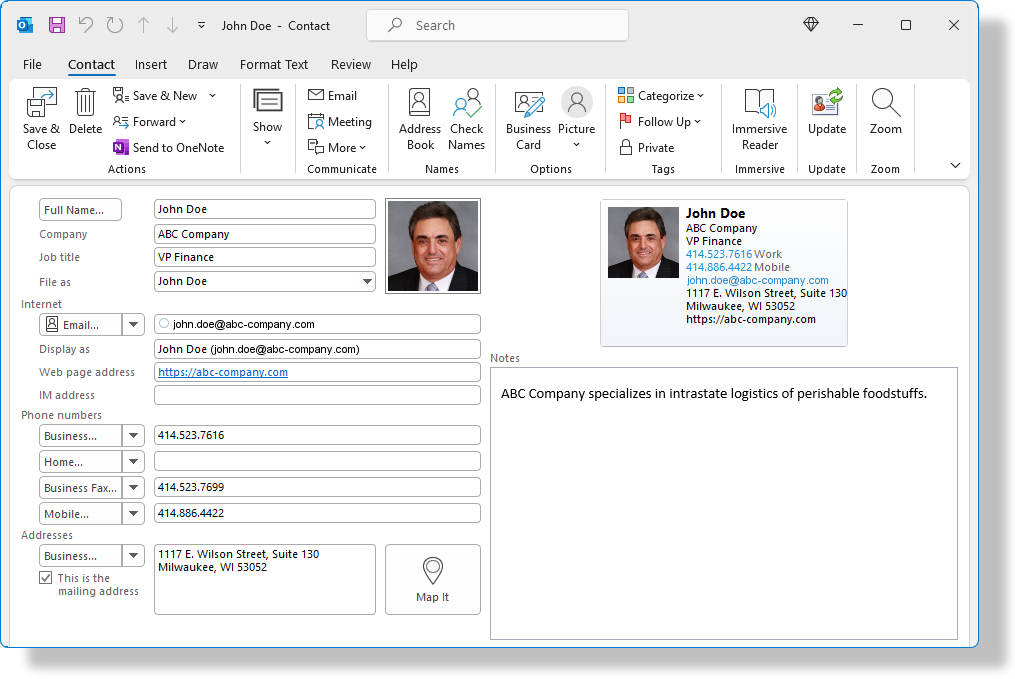
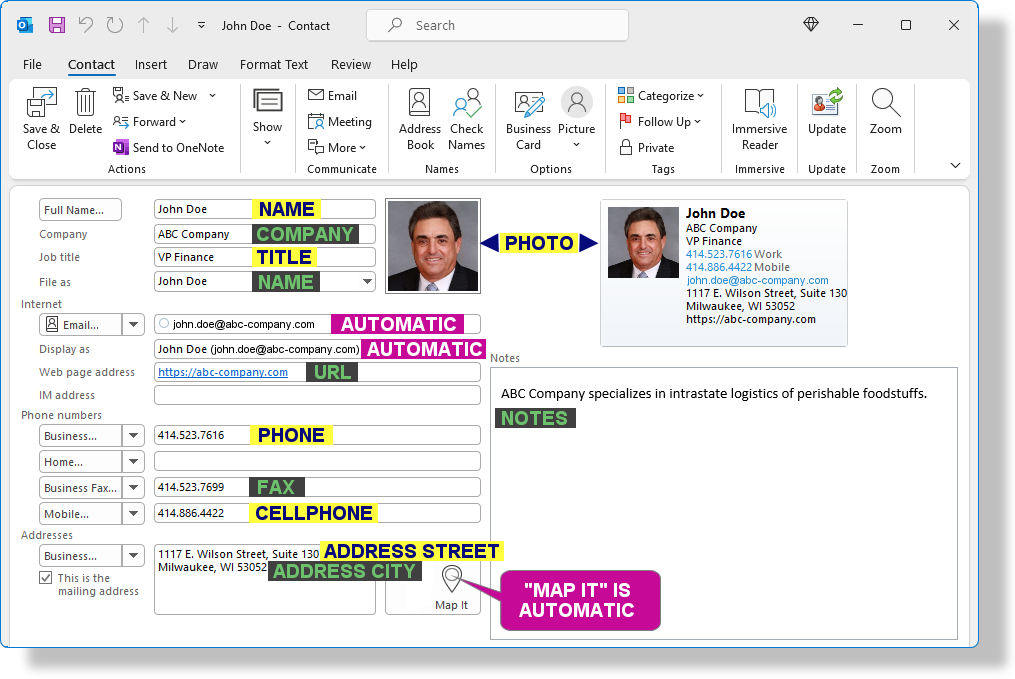
Dynasend's vCard Mapping function allows you to map your fields into the vCard (.VCF) file that is automatically produced by Dynasend. The resulting vCard, when opened in Outlook, can look somethign like this:
The vCard Mapping screen looks like this (but with a lot more fields):
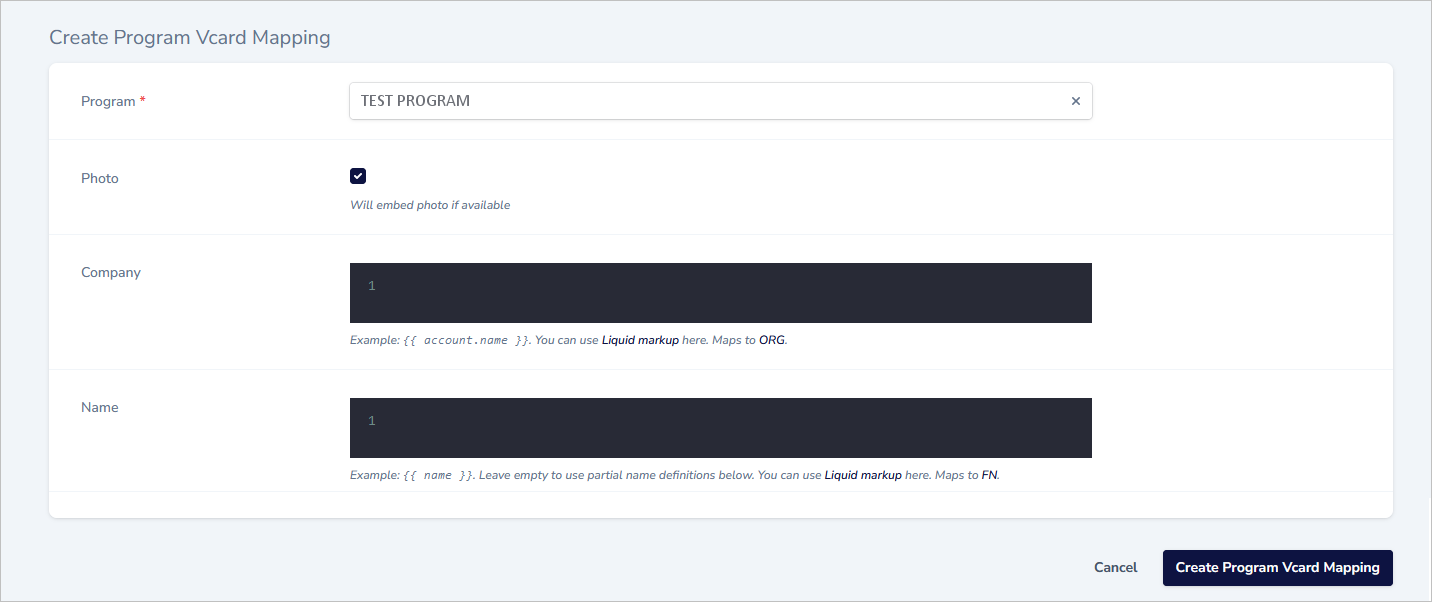
You'll populate the fields with your Liquid variables, for example:
{{ full_name }} {{ title }} {{ company }}
The code to put into your HTML to open the .VCF file is:
<a href="{{ signatures.vcf.url }}">vCard</a>
The fields map as shown here:
Related docs: