Account Setup
Your Dynasend "account" is where you will configure the top-level settings that carry through to your managers and users.
Account Detail
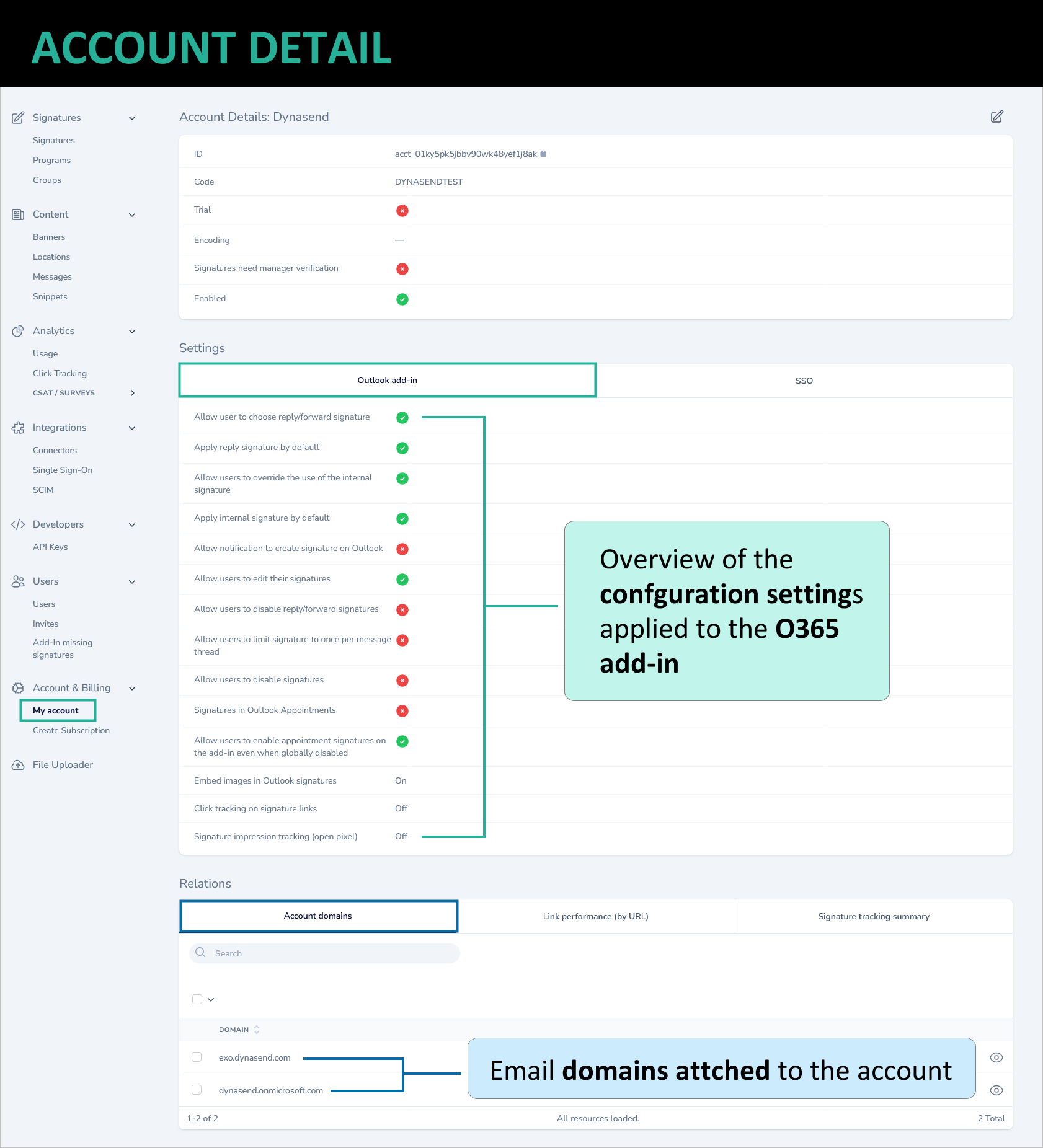
The "Account Detail" screen provides an overview of how the account is set up – the most important two items being the Outlook add-in configuration and the domains that are attached.
Editing the Account
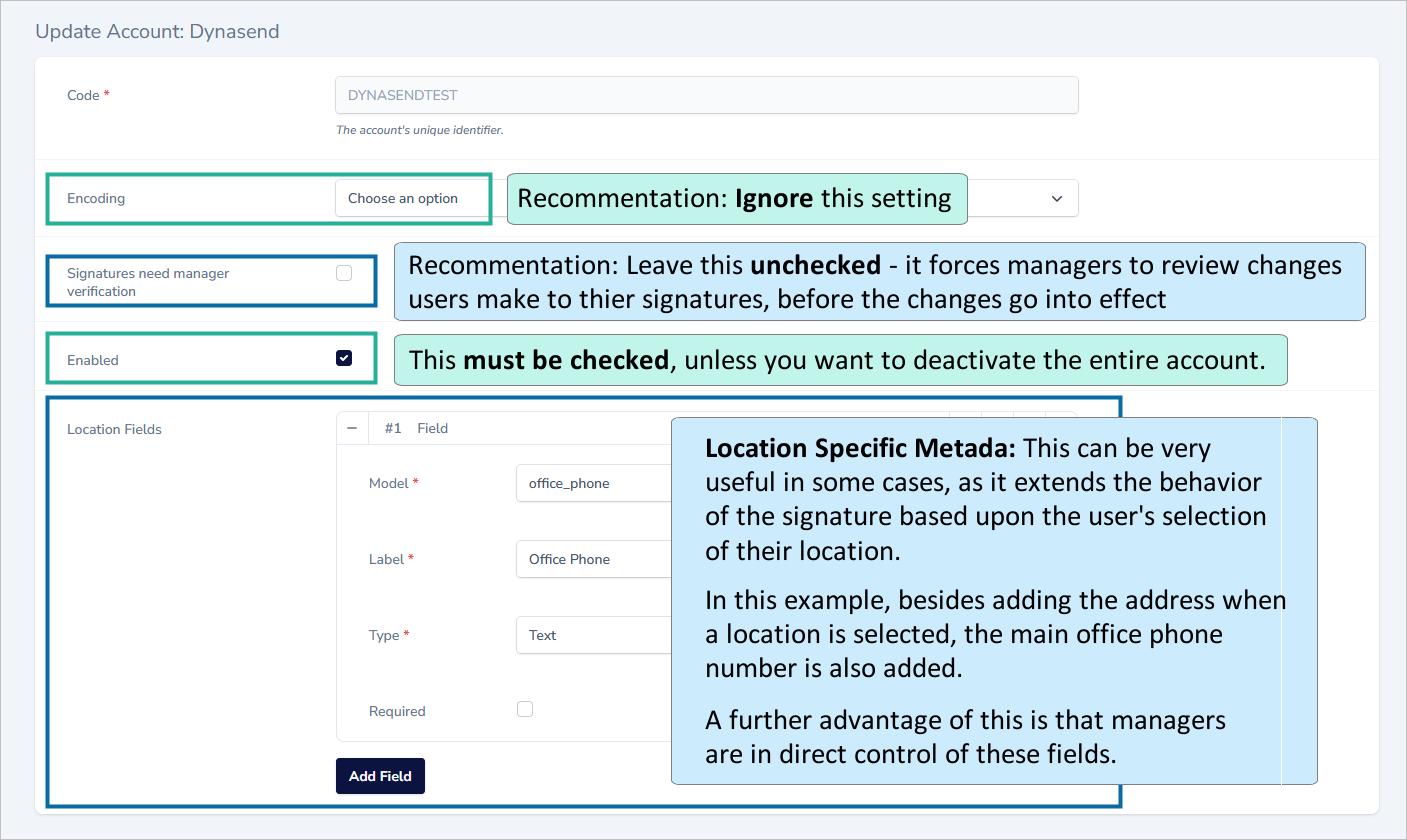
Editing the account gives you top-level control over the entire account (all programs).
Outlook Add-in Configuration Settings
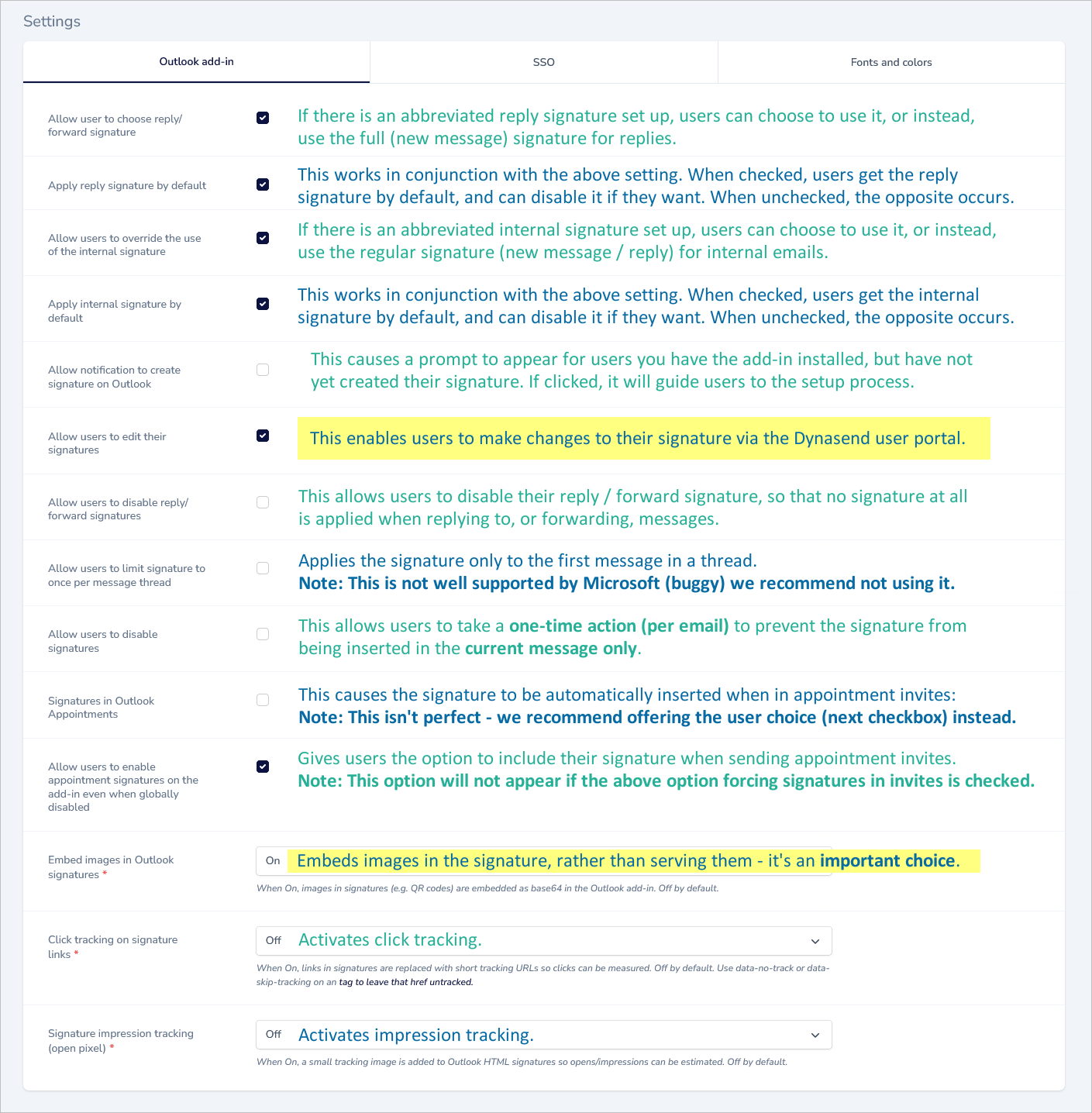
The Outlook add-in configuration settings are quite detailed, enabling you to fine-tune the behavior of the signatures to a considerable degree. These settings have evolved over time, in response to specific customer requests, and should allow you to meet most of the requests that may arise after launching your signature program.
Served vs. Embedded Images: Click here to learn more.
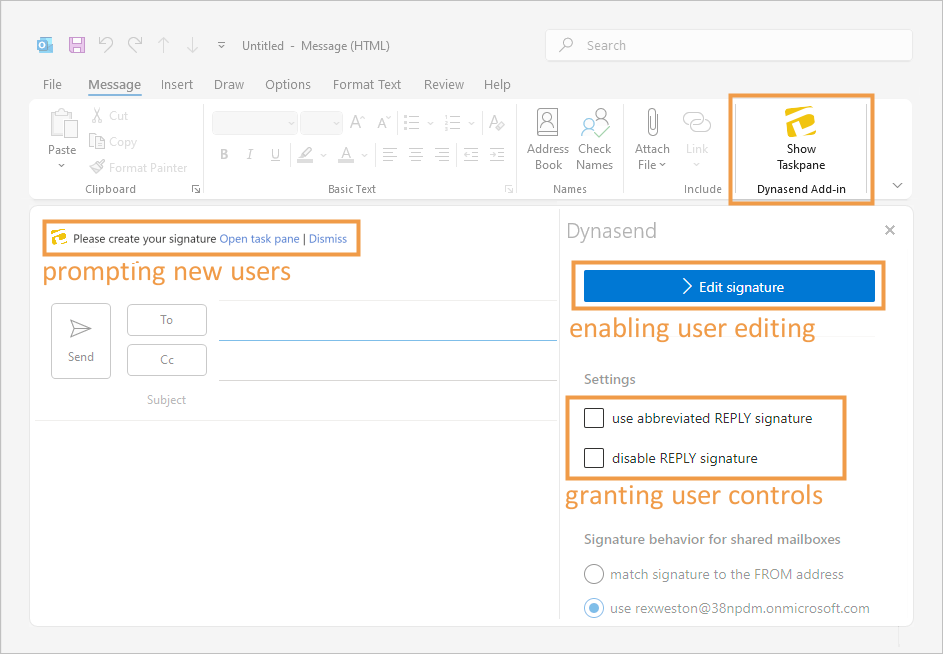
The graphic below illustrates how some of the settings are translated to the user's Dynasend taskpane.
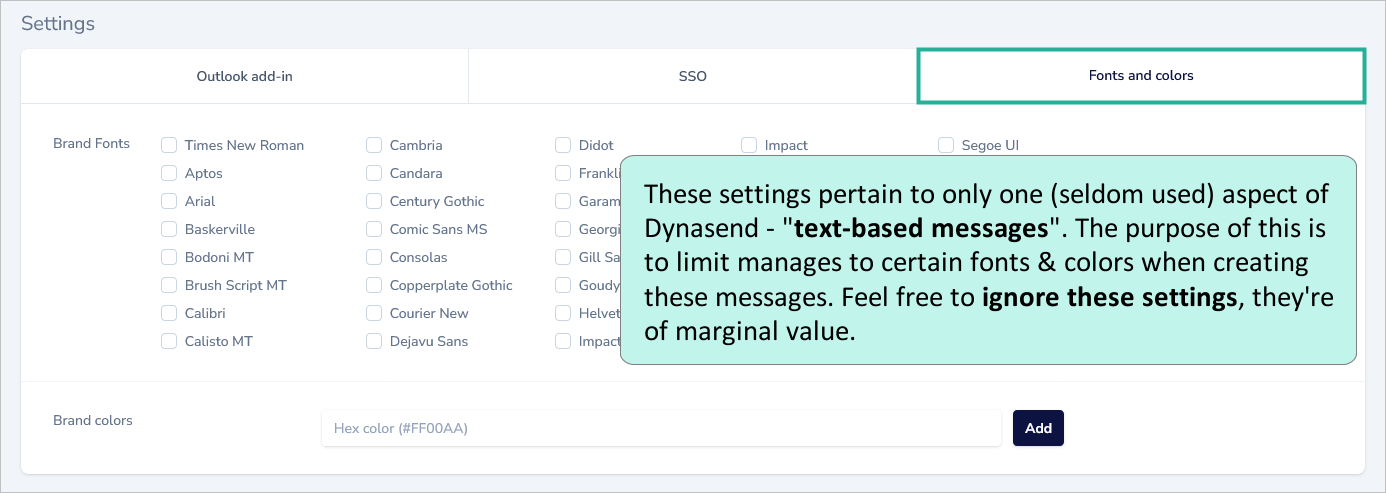
Fonts & Colors Tab
The "Fonts & Colors" tab is actually not very important, and can be ignored in most cases – it's really been designed for large enterprise customers who may have a multitude of managers accessing the account.
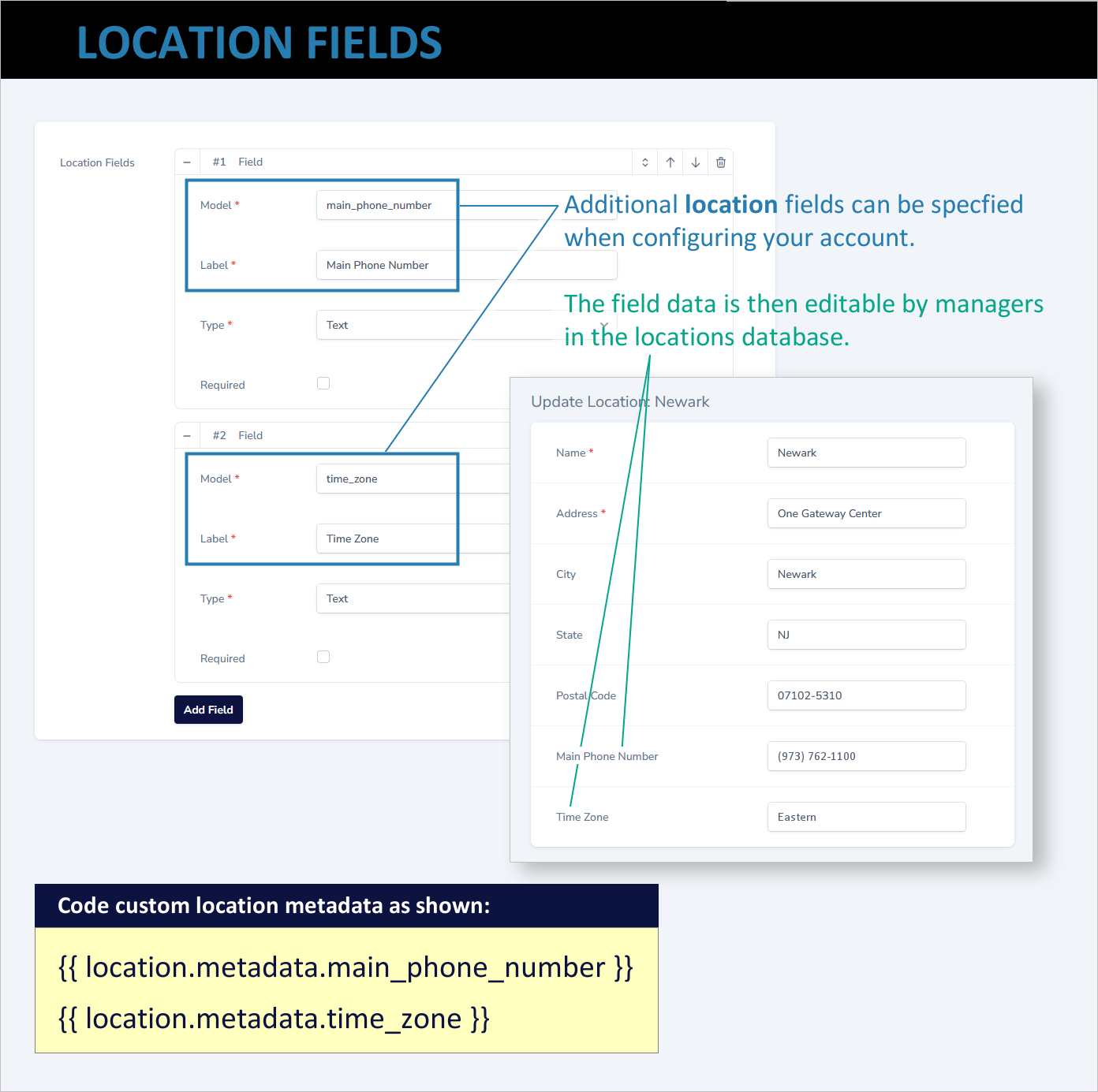
Custom "Location Fields"
Custom location fields can be specified as-needed. The value in using these is that they become mainainable by managers, so as changes are needed, or as new locations are added, managers can input the data, rather than needing to come back to the developer for modifications.