Create and Install a Temporary Signature for Outlook Desktop
Following is an approach to manually installing your current Dynasend signature into desktop Outlook and setting it as your default so that you still have a signature while you wait for Microsoft to fix the problem with your Outlook.
First you will need to login here https://us-east-2.manage.dynasend.net/login (use the "one time passord" option).
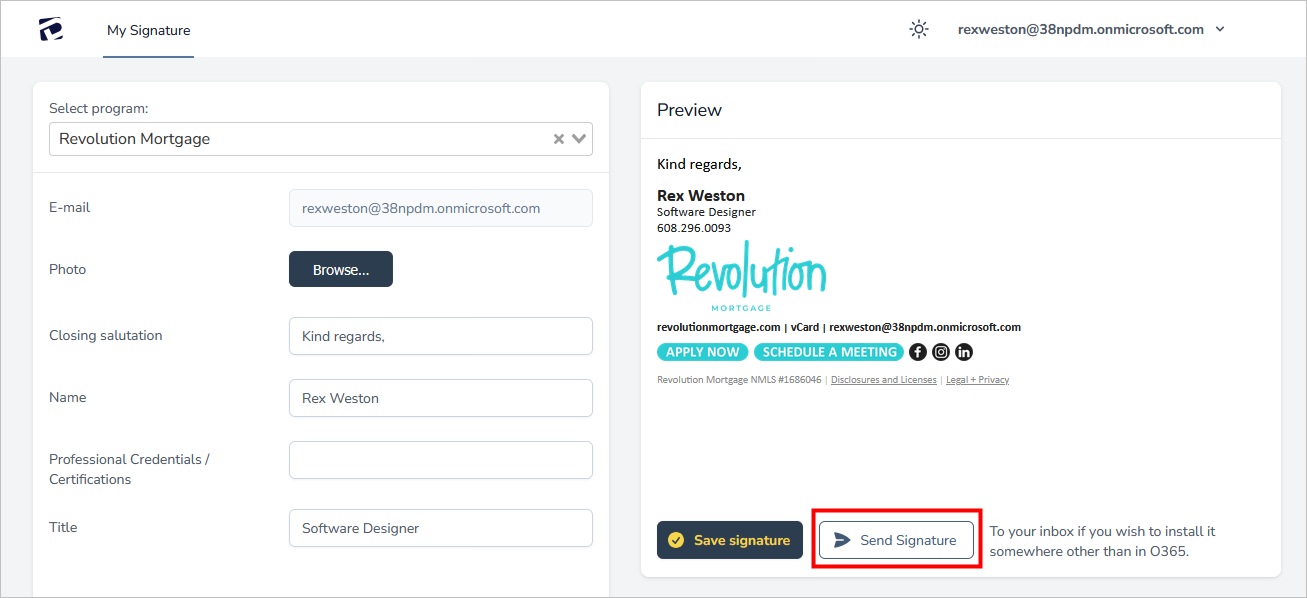
When you reach the Dynasend user profile, click the "Send Signature" button:
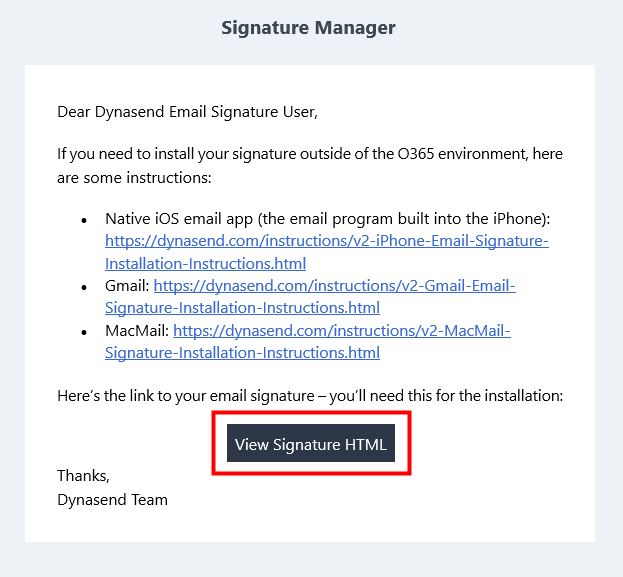
You will then receive an email - click the "View Signature HTML" button:
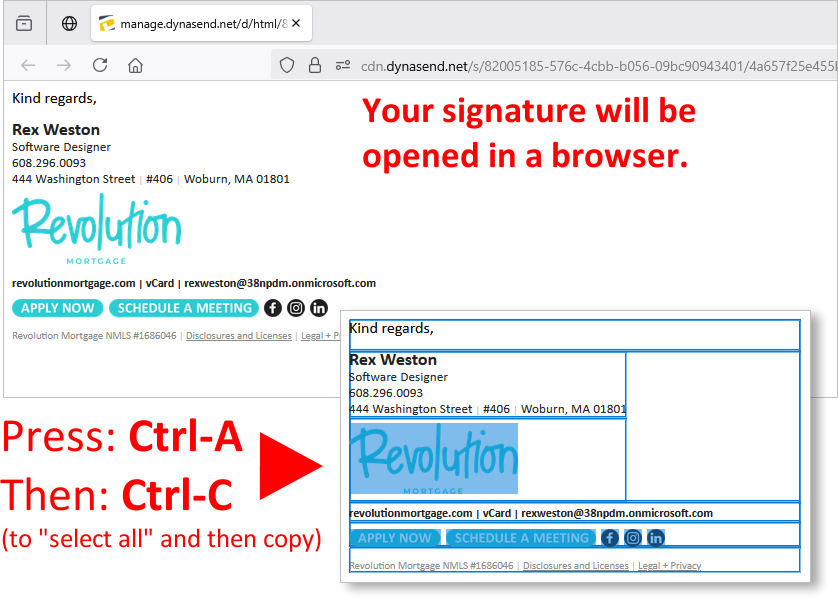
Your signature will open in your browser. Press Ctrl-A and then Ctrl-C (this will copy your signature to your clipboard).
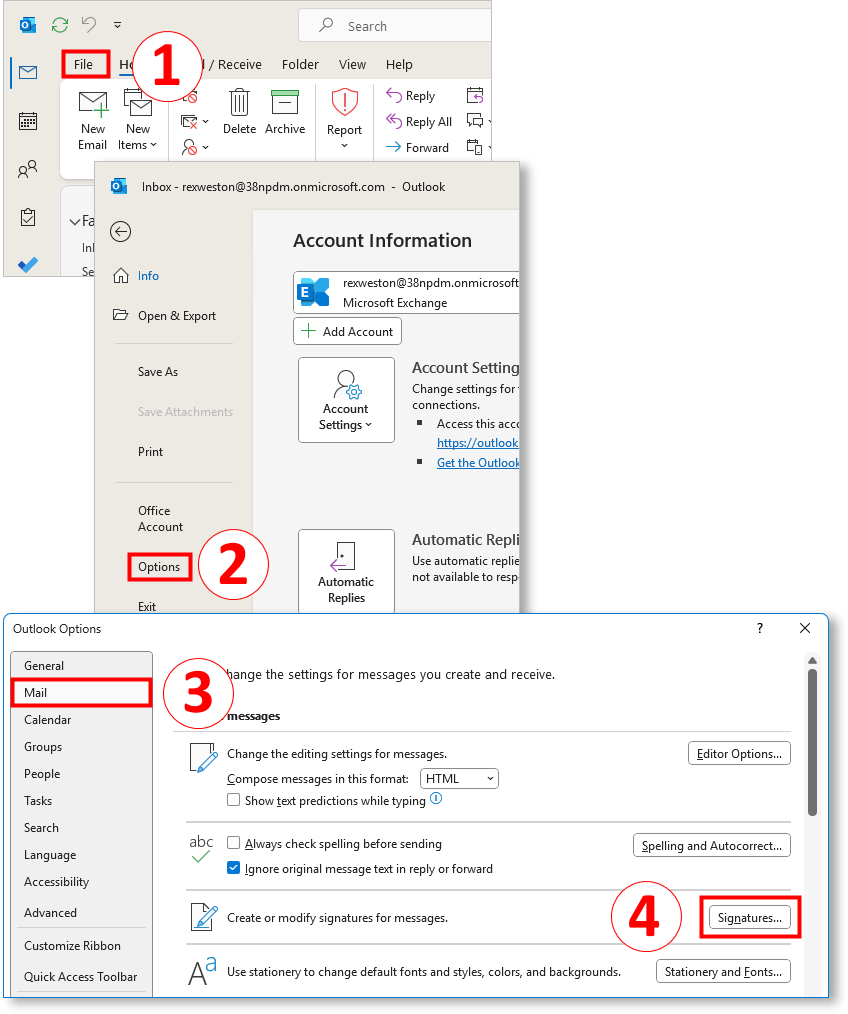
Now go to your Outlook Desktop's inbox and navigate as shown below:
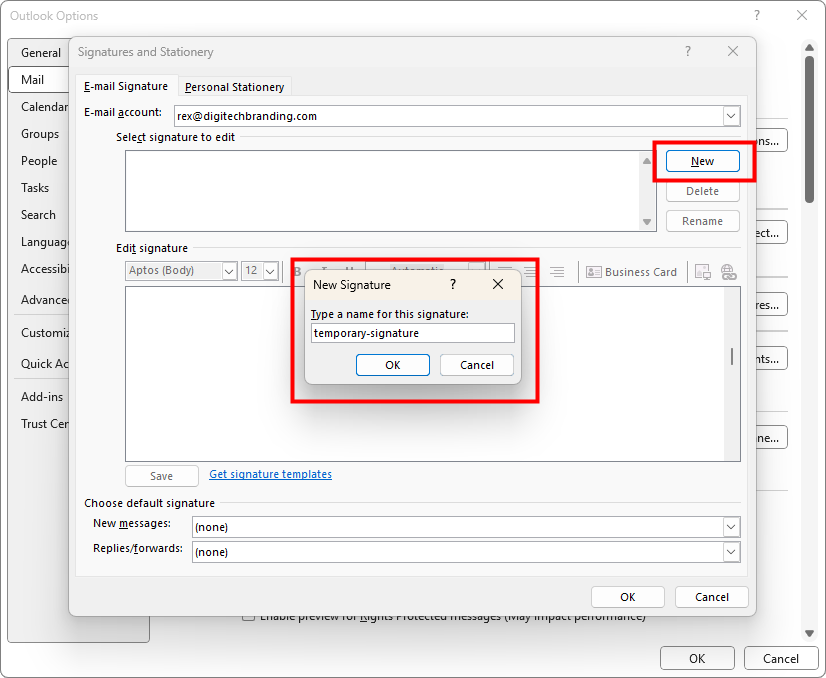
Create a new signature and give it a name:
Paste in the signature you previously copied, set it as your default, and click "OK"
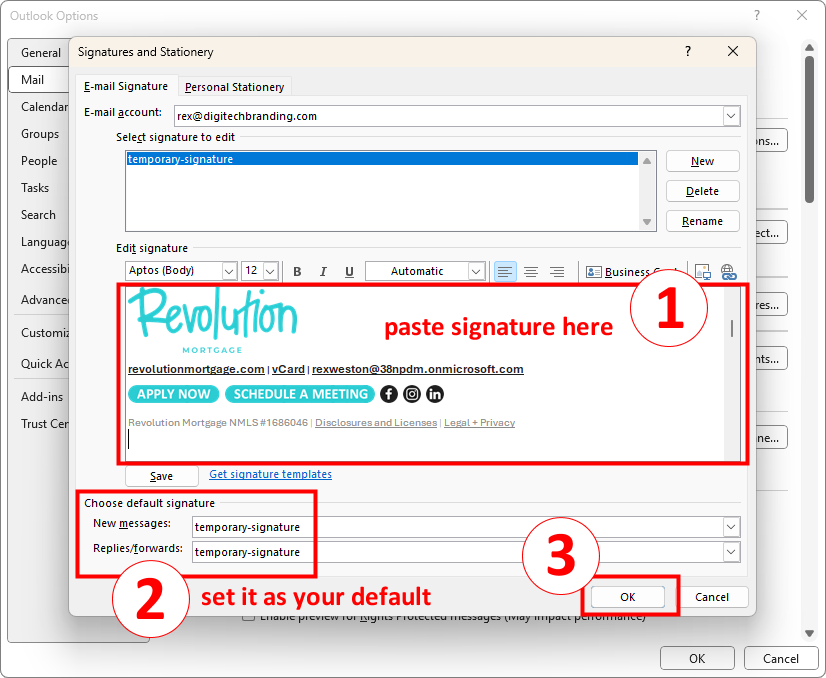
This process will set your Dynasend signature up as your default and it will function for you until Microsoft repairs your Outlook and your signature begins functioning normally for you again.
This manually installed signature is static, and will not update automatically, it is intended to function as a stopgap for a brief time until the Dynasend add-in begins running properly in your Outlook.
Once the Dynasend add-in begins to function again, this signature will be automatically overridden, so there is no need to worry about removing it later.