Dynasend's Configuration Options
After deciding on design and content, configure how signatures behave. For deployment steps, see Outlook add-in or Google Workspace.
Video Overview
View Your Add-In Settings
When logged into the dashboard, managers can view add-in settings in the Accounts screen.
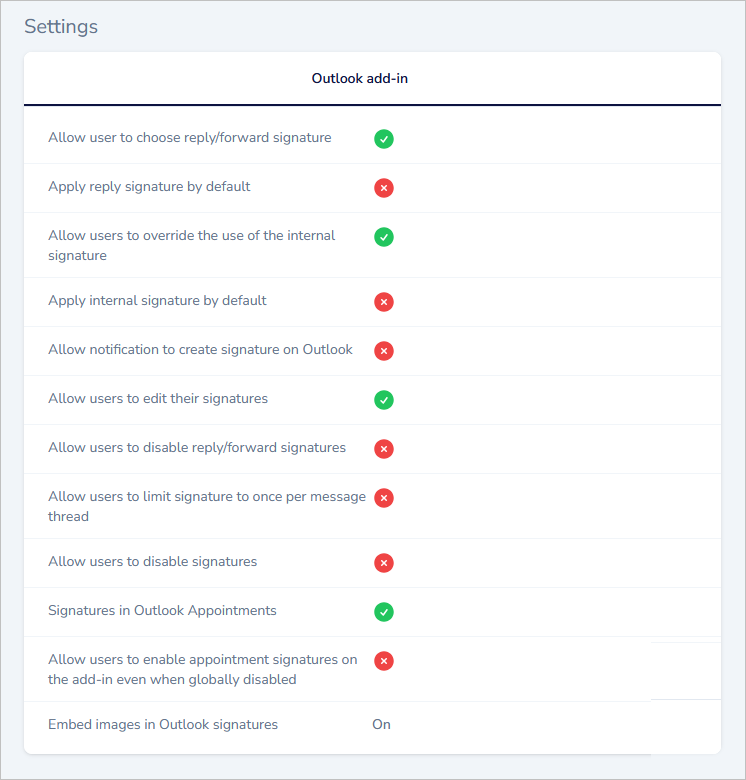
These settings are explained on this page (following).
If you would like to have any of these setting changed, please email us with your request.
Three-in-One Signatures
There can be up to three different signature templates for each user:
- Full-featured signature
- More streamlined signature for REPLIES / FORWARDS
- Very streamlined signature for INTERNAL communications
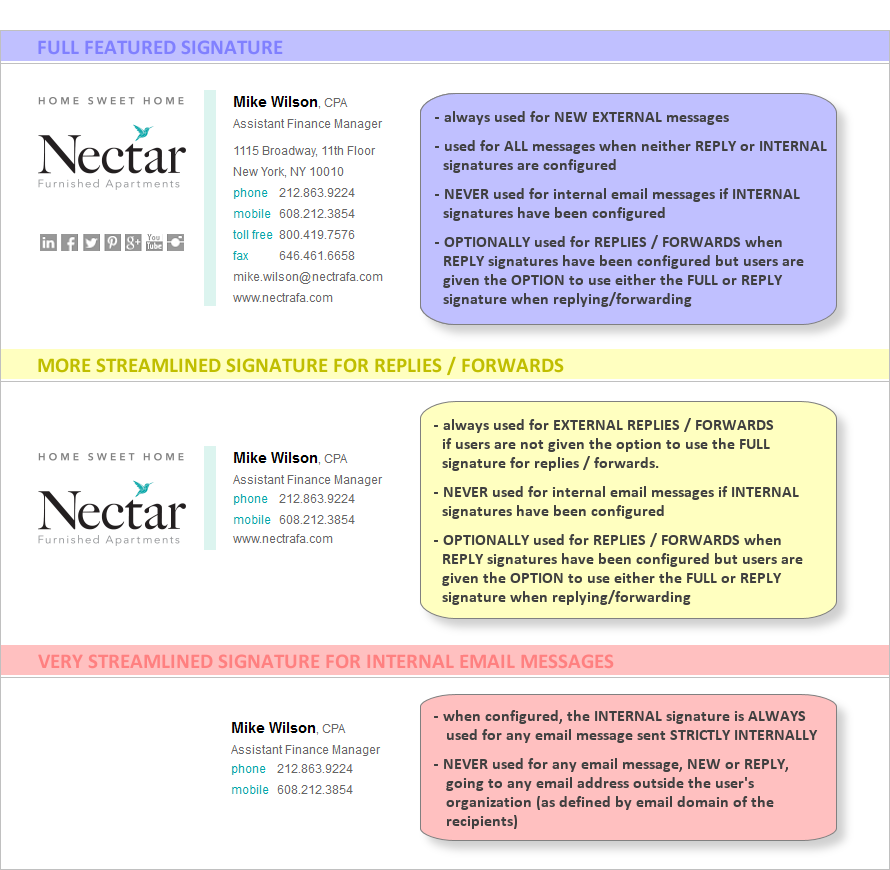
So, one aspect of the configuration decisions will be:
- do you want an abbreviated REPLY signature, and if so, do you want it to me mandatory or optional for users?
- do you want to use an INTERNAL signature, or just use the regular signatures for internal emails?
Finally, if you are going to use the streamlined REPLY/FORWARD signature, one more thing to decide is if you will want “banners” and/or “text-based messages” to appear in the REPLY signature.
User and/or Manager Editing of Signatures
The program can be configured to give users the ability to edit the content in their signature directly (via our user interface).
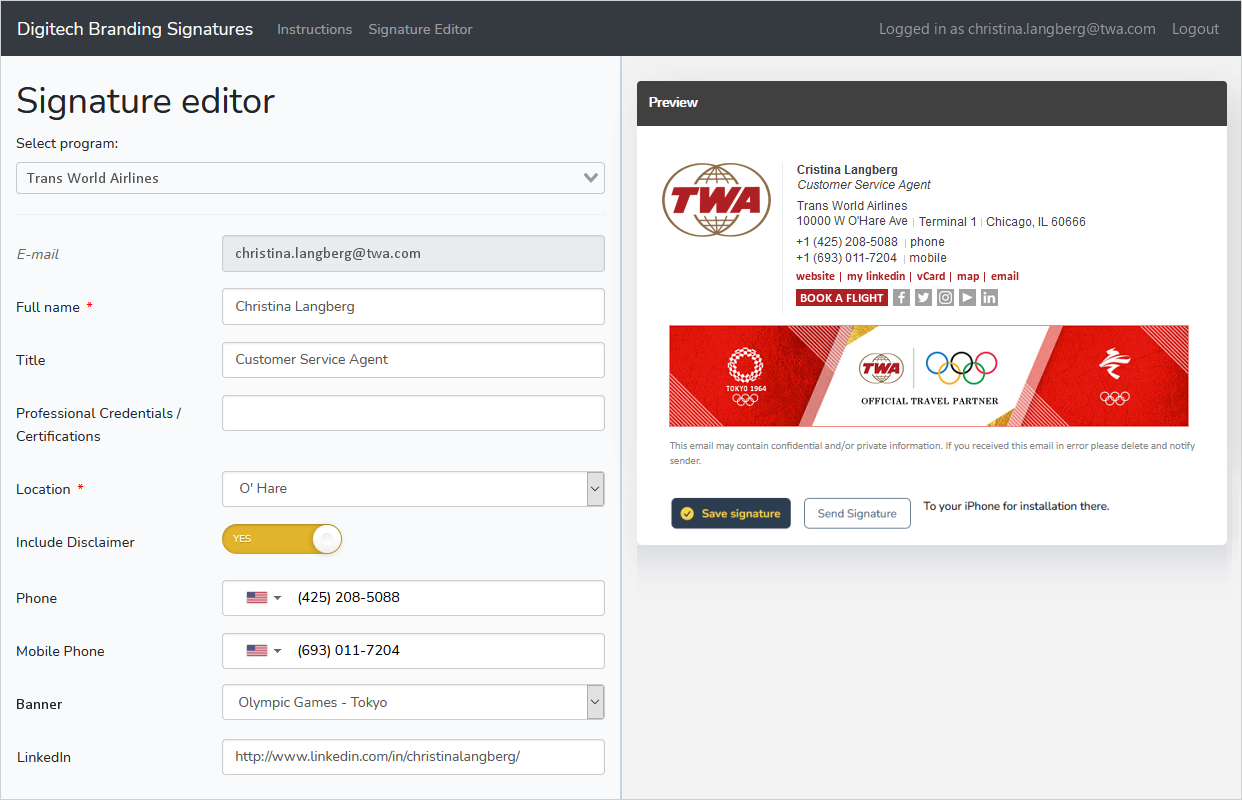
Alternatively, users can be locked-out of editing entirely. In this case the signature content will be added either by Active Directory or manually by a designated “manager” in your organization.
Lastly is a hybrid approach. In this case, users will be given access to the user interface, but will only be able to edit pre-determined data fields. For instance, you may decide that they can edit their name and phone number but cannot edit their title. In this case, the user’s title will only be editable by the designated “manager”.
So another configuration decision that will need to be made is:
- do you want to allow users to edit all of their signature content?
- if not, do you want them to be able to edit some of it, and if so, which data fields should they be allowed to edit?
- or would you prefer that users not be able to edit any of their signature content.
Managers can control user access and signatures from the Manager Dashboard. For security and compliance details, see Security.
Enabling / Disabling Reply Signatures
If you wish to give your users the option to disable the signature for replies/forwards, this can be done at the account level (meaning that if this option is provided, then everyone will be able to enable/disable their reply signature).

Note: By default we will not provide this option - you must request it if you want it to be made available to your users.
O365 Alerts Prompt New Users to Create Their Signature
New users who have not completed a signature profile will see an O365 alert prompting them to do so. The alert will automatically disappear once they've completed their signature profile.
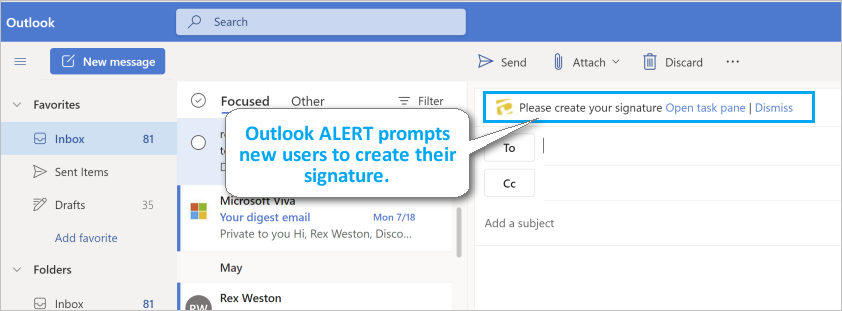
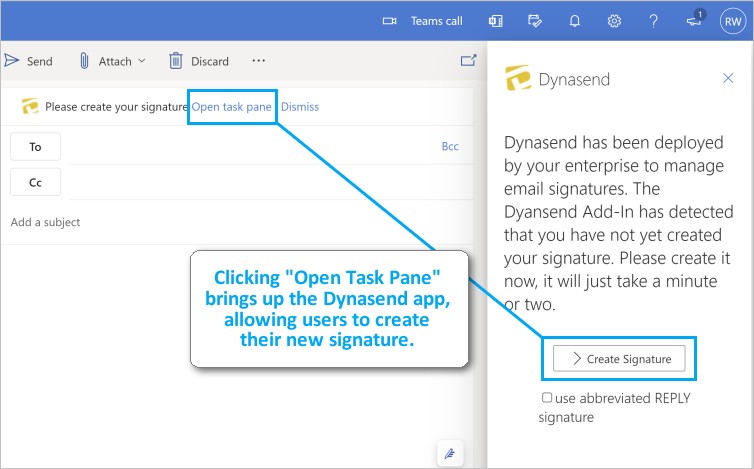
Once "Create Signature" has been clicked, users will be guided through the super-simple authentication and signature creation process.
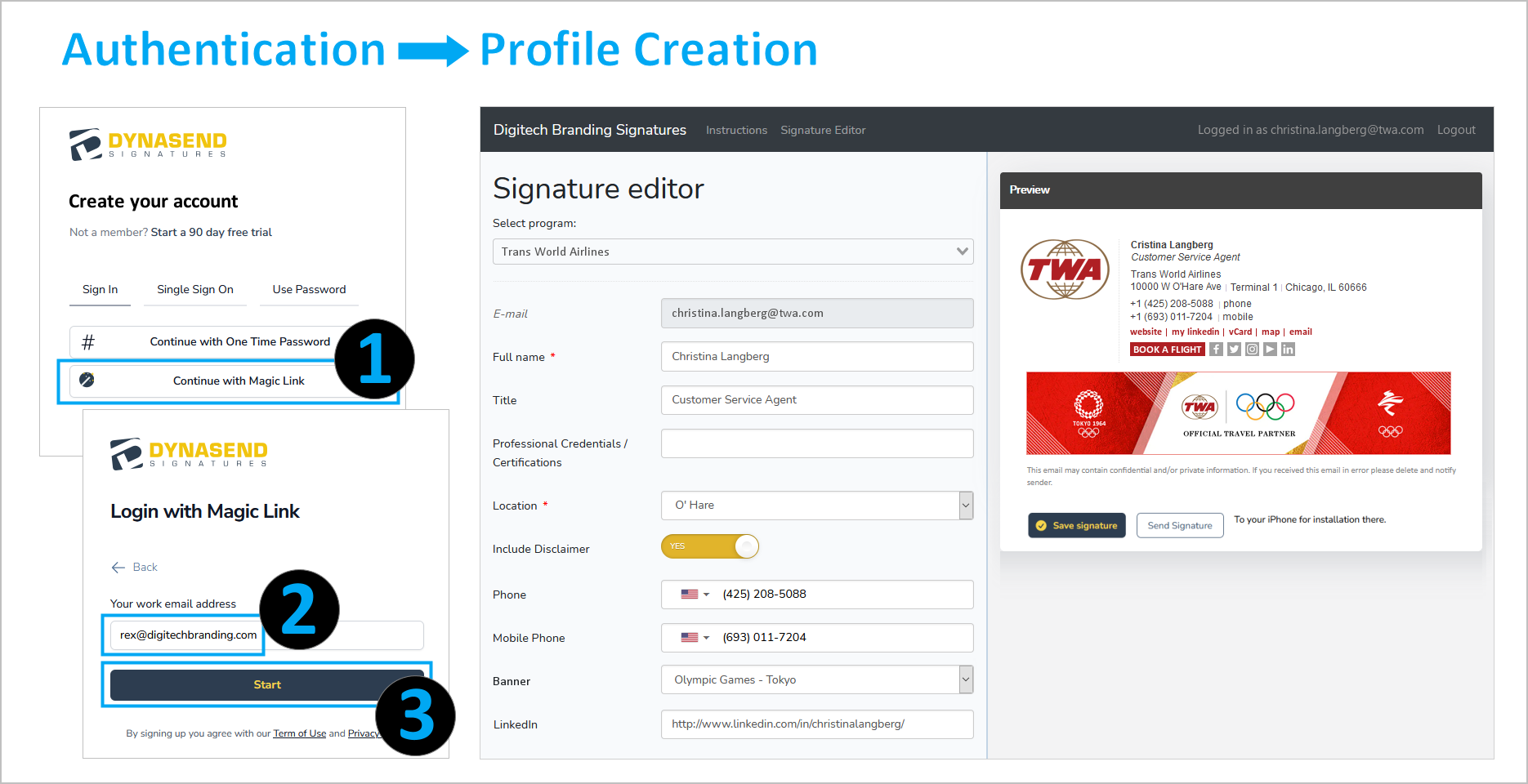
Once their signature profile has been saved, the signature will commence to function for them.
Signatures in Meeting Invites
Signatures can be included in meeting invites if you wish. They can be activated globally across your account, or they can be set to be optional, per the user's preference (via a checkbox in the task-pane):

Appointment signatures only work on Outlook for Mac and Outlook Desktop for Windows.
Appointment signatures are not supported on Outlook on the Web nor Outlook Mobile (iOS & Android).
As of November 2025, there are some unspecified bugs in Microsoft's implementation of this feature. We recommend making the meeting invite signatures optional, so users can disable them if they experience any problems.
Use of Embedded Images (vs "Served" Images)
By default, Dynasend signatures utilize "served" images - that is, the recipient receives an email message without any images, and the images are then download (accessed via URL) and displayed in the signature. This is considered a best practice in the realm of email, and is how we have historically approached signature coding.
Beginning in March of 2026, at the request of some customers, we have introduced an option to embed images directly in the signatures. The approach we have taken in doing this is very conventional and has been in use by our competitors for many years.
In deciding which approach you would like to take for your signatures, it is very important that you consider the pros and cons of each approach - they are significant.
Served Images (Pros)
- considered an email best practice
- most respectful to recipient's wishes (See "image blocking" note below.)
- lightest possible payload / minimizes inbox storage requirements
- fast signature loading when composing messages
Served Images (Cons)
- images to not automatically appear when recipients have "image blocking" turned on. Rather, recipients are prompted to "click to download images", which they probably rarely do. (See "not broken" note below.)
Embedded Images (Pros)
- Image blocking is bypassed, thus resulting in images automatically appear in recipient's email in (virtually) all cases
Embedded Images (Cons)
- signatures are likely to load a little more slowly into the body of an email when composing messages
- the payload delivered to recipients is significantly larger as it includes the images. This is true every single time (there is no caching). While not visibly noticeable, it does result in an increase in disc space required for email storage.
- it overrides recipient's desire to block images (See "image blocking" note below.)
It is our belief that most people with image blocking turned on do not have it on intentionally, but rather have it on simply because it is defaulted to on in Outlook and they have never bothered to figure out how to turn it off. In other words, we don't feel that concerns over "recipient's wishes" are a major issue here.
Anyone with image blocking enabled will receive multiple emails every day that have blocked images (empty rectangles with a prompt to "click to download" images). Because this will be a routine occurrence your signature will not be perceived as being broken - rather, it will be perceived as normal.
If you wish to have your images embedded in your signatures it is a very simple configuration on the Dynasend side - it's a simple toggle we can turn on or off. Images can be embedded across your entire account, or only for specific users (if you want to test them or have just a few people who insist upon them).
As stated, the option to embed images is new to us as of March 2026. Although the approach we have used is standard and in widespread use by our competitors, we do not have first-hand testing experience with it. As a result, we would encourage you to test it with a limited number of users (probably IT) for a while before implementing it across your entire enterprise.