Google Apps Deployment Overview
Configuring Google Apps signature deployment requires:
- Enabling API access from within the Google Apps Admin console
- Running the Google Apps Signature Deployment Assistant to set the API keys
- Deploying the generated configuration settings to users of the Signature Deployment tool
Before starting, ensure you have administrator credentials for Google Apps and have successfully installed the Signature Deployment Tool in Admin mode. The Google Apps Deployment Assistant is only available in the Admin mode (not User mode) installer. The download link to the Signature Deployment Tool (Admin Version) is available from your Dynasend administrator or contact support.
The Google Apps Signature Deployment Assistant generates an encrypted configuration file that must be deployed to all users who require Google Apps signature deployment. In smaller environments this can be done manually; in larger environments we recommend using a logon script or third-party software deployment tool.
Part 1: Google Apps preparation
-
Go to https://console.developers.google.com/apis/credentials and log in with your Google Apps administrator credentials.
-
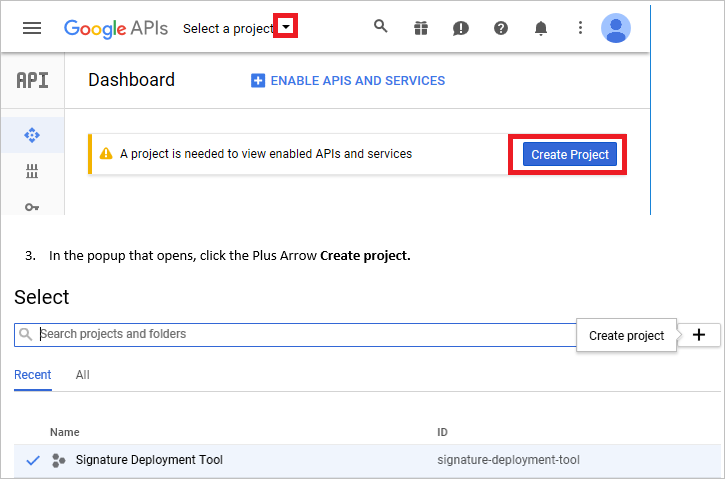
Next to the Google APIs logo, click the drop-down arrow next to Select a project, or if the dashboard appears, use the Create project button. (If you already have at least one project, one of your project names will be displayed instead of "Select a project.")
-
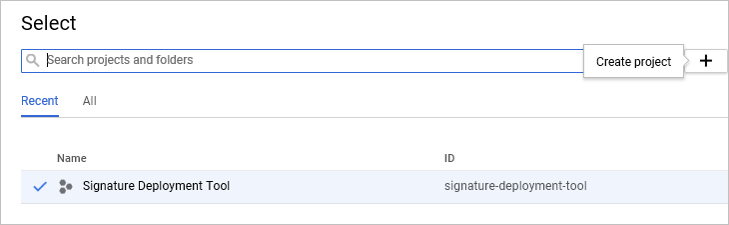
In the popup, click the plus arrow Create project.
-
Name the project Signature Deployment Tool and click Create.

-
Open the Credentials tab (key icon on the left if not already selected).

-
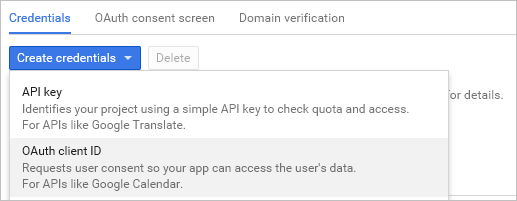
Click Create Credentials and select OAuth client ID.
-
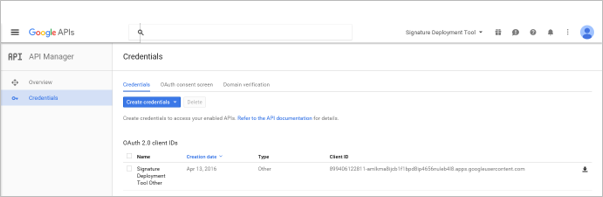
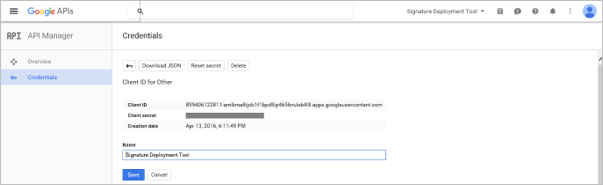
Select Other as the application type and enter a name for the key (e.g. Signature Deployment Tool Other). In the list of OAuth 2.0 client IDs, click the name of the client ID you created.
-
The Client ID and Client Secret required for Part 2 are displayed on this page.
Part 2: Running the Google Apps Signature Deployment Assistant
-
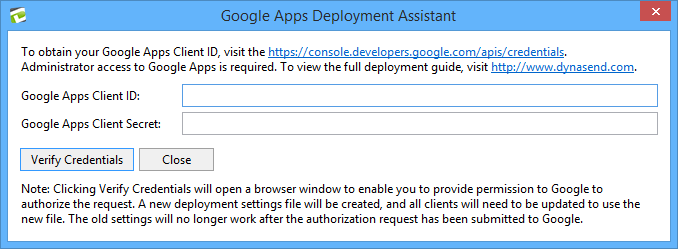
Launch the Google Apps Signature Deployment Assistant from the Start menu and enter the Client ID and Client Secret from step 8 above.
-
Click OK to continue. If you re-run the process, existing clients with old configuration files may no longer be able to deploy to Google Apps until they receive an updated configuration file.

-
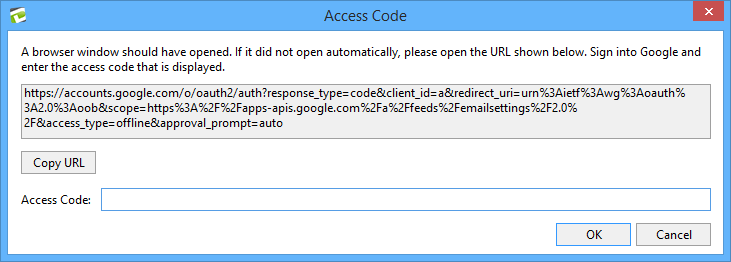
In the browser window that opens, sign into Google Apps and agree to the authorization request.
-
Copy the Access code from the browser window and paste it into the Access Code dialog box. Click OK.
-
After successful verification with Google, the configuration file is generated and the folder containing it opens. Deploy the GoogleAppsConfiguration.xml file to all clients who need Google Apps signature deployment:
- User mode: Copy GoogleAppsConfiguration.xml to %ProgramData%\DynaSend\Signature Deployment Tool.
- Admin mode: Copy GoogleAppsConfiguration.xml to the user's %APPDATA%\DynaSend\Signature Deployment Tool folder.